Showing posts with label html. Show all posts

Friday, 15 May 2015

Interactive maps for the web in R

Static Maps
In the last post I showed how to download economic data from the World Bank's website and create choropleth maps in R (Global Economic Maps).
In this post I want to focus more on how to visualize those maps.

Sp Package
Probably the simplest way of plotting choropleth maps in R is the one I showed in the previous post, using the function ssplot(). For example with a call like the following:

library(sp)
spplot(polygons,"CO2",main=paste("CO2 Emissions - Year:",CO2.year),sub="Metric Tons per capita")

This function takes the object polygons, which is a SpatialPolygonsDataFrame, and in quotations marks the name of the column where to find the values to assign, as colors, to each polygon. This are two basic mandatory elements to call the function. However, we can increase the information in the plot by adding additional elements, such as a title, option main, and a sub title, option sub.

This function creates the following plot:
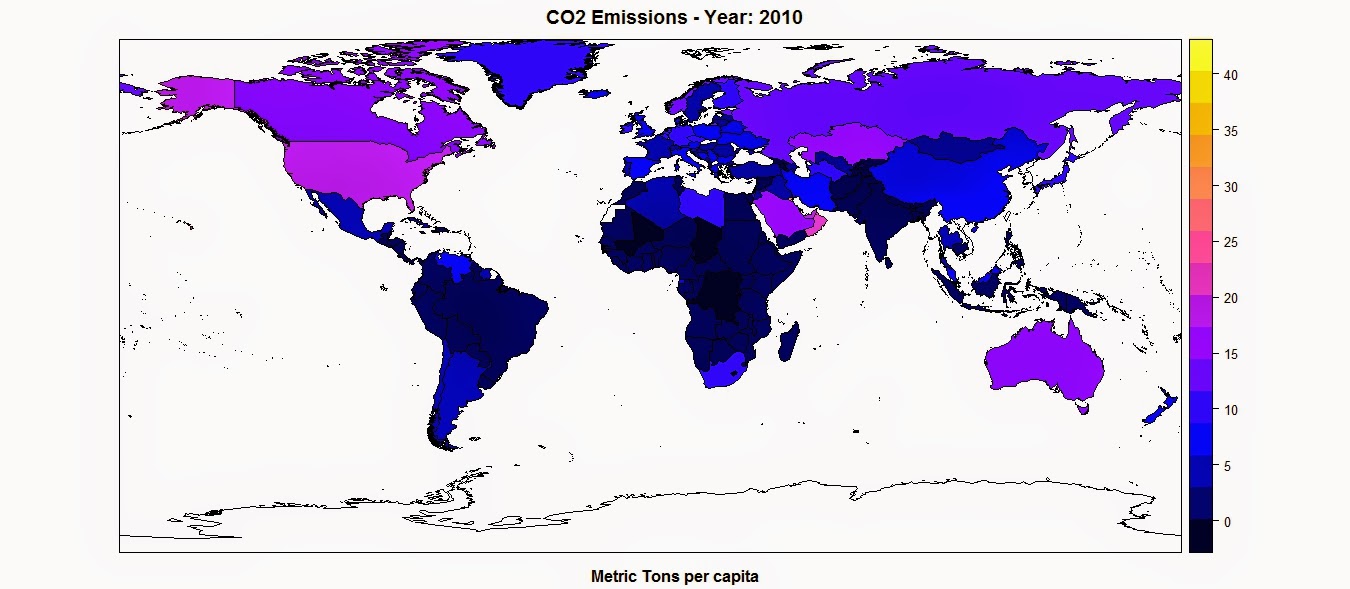
The color scale is selected automatically and can be changed with a couple of standard functions or using customized color scales. For more information please refer to this page: http://rstudio-pubs-static.s3.amazonaws.com/7202_3145df2a90a44e6e86a0637bc4264f9f.html


Standard Plot
Another way of plotting maps is by using the standard plot() function, which allows us to increase the flexibility of the plot, for example by customizing the position of the color legend.
The flip side is that, since it is the most basic plotting function available and it does not have many built-in options, this function require more lines of code to achieve a good result.
Let's take a look at the code below:

library(plotrix)
CO2.dat <- na.omit(polygons$CO2)
colorScale <- color.scale(CO2.dat,color.spec="rgb",extremes=c("red","blue"),alpha=0.8)
 
colors.DF <- data.frame(CO2.dat,colorScale)
colors.DF <- colors.DF[with(colors.DF, order(colors.DF[,1])), ]
colors.DF$ID <- 1:nrow(colors.DF)
breaks <- seq(1,nrow(colors.DF),length.out=10)
 
 
jpeg("CO2_Emissions.jpg",7000,5000,res=300)
plot(polygons,col=colorScale)
title("CO2 Emissions",cex.main=3)
 
legend.pos <- list(x=-28.52392,y=-20.59119)
legendg(legend.pos,legend=c(round(colors.DF[colors.DF$ID %in% round(breaks,0),1],2)),fill=paste(colors.DF[colors.DF$ID %in% round(breaks,0),2]),bty="n",bg=c("white"),y.intersp=0.75,title="Metric tons per capita",cex=0.8) 
 
dev.off()


By simpling calling the plot function with the object polygons, R is going to create an image of the country borders with no filling. If we want to add colors to the plot we first need to create a color scale using our data. To do so we can use the function color.scale() in the package plotrix, which I used also in the post regarding the visualization seismic events from USGS (Downloading and Visualizing Seismic Events from USGS ). This function takes a vector, plus the color of the extremes of the color scale, in this case red and blue, and creates a vector of intermediate colors to assign to each element of the data vector.
In this example I first created a vector named CO2.dat, with the values of CO2 for each polygon, excluding NAs. Then I feed it to the color.scale() function.

The next step is the creation of the legend. The first step is the creation of the breaks we are going to need to present the full spectrum of colors used in the plot. For this I first created a data.frame with values and colors and then I subset it into 10 elements, which is the length of the legend.
Now we can submit the rest of the code to create a plot and the legend and save it into the jpeg file below:


Interactive Maps
The maps we created thus far are good for showing our data on papers and allow the reader to have a good understanding of what we are trying to show with them. Clearly these are not the only two methods available to create maps in R, many more are available. In particular ggplot2 now features ways of creating beautiful static maps. For more information please refer to these website and blog posts:
Maps in R
Making Maps in R
Introduction to Spatial Data and ggplot2
Plot maps like a boss
Making Maps with R

In this post however, I would like to focus on ways to move away from static maps and embrace the fact that we are now connected to the web all the times. This allow us to create maps specifically design for the web, which can also be much more easy to read by the general public that is used to them.
These sort of maps are the interactive maps that we see all over the web, for example from Google. These are created in javascript and are extremely powerful. The problem is, we know R and we work on it all the time, but we do not necessarily know how to code in javascript. So how can we create beautiful interactive maps for the web if we cannot code in javascript and HTML?

Luckily for us developers have create packages that allow us to create maps using standard R code but n the form of HTML page that we can upload directly on our website. I will now examine the packages I know and use regularly for plotting choropleth maps.


googleVis
This package is extremely simple to use and yet capable of creating beautiful maps that can be uploaded easily to our website.
Let's look at the code below:

data.poly <- as.data.frame(polygons)
data.poly <- data.poly[,c(5,12)]
names(data.poly) <- c("Country Name","CO2 emissions (metric tons per capita)")
 
map <- gvisGeoMap(data=data.poly, locationvar = "Country Name", numvar='CO2 emissions (metric tons per capita)',options=list(width='800px',heigth='500px',colors="['0x0000ff', '0xff0000']"))
plot(map)
 
print(map,file="Map.html")
 
#http://www.javascripter.net/faq/rgbtohex.htm
#To find HEX codes for RGB colors

The first thing to do is clearly to load the package googleVis. Then we have to transform the SpatialPolygonsDataFrame into a standard data.frame. Since we are interested in plotting only the data related to the CO2 emissions for each country (as far as I know with this package we can plot only one variable for each map), we can subset the data.frame, keeping only the column with the names of each country and the one with the CO2 emissions. Then we need to change the names of these two columns so that the user can readily understand what he is looking at.
Then we can simply use the function gvisGeoMap() to create a choropleth maps using the Google Visualisation API. This function does not read the coordinates from the object, but we need to provide the names of the geo locations to use with the option locationvar, in this case the Google Visualisation API will take the names of the polygons and match them to the geometry of the country. Then we have the option numvar, which takes the name of the column where to find the data for each country. Then we have options, where we can define various customizations available in the Google Visualisation API and provided at this link: GoogleVis API Options
In this case I specified the width and height of the map, plus the two color extremes to use for the color scale. 
The result is the plot below:


This is an interactive plot, meaning that if I hover the mouse over a country the map will tell me the name and the amount of CO2 emitted. This map is generated directly from R but it all written in HTML and javascript. We can use the function print(), presented in the snippet above, to save the map into an HTML file that can upload as is on the web.
The map above is accessible from this link:  GoogleVis Map


plotGoogleMaps
This is another great package that harness the power of Google's APIs to create intuitive and fully interactive web maps. The difference between this and the previous package is that here we are going to create interactive maps using the Google Maps API, which is basically the one you use when you look up a place on Google Maps.
Again this API uses javascript to create maps and overlays, such as markers and polygons. However, with this package we can use very simple R code and create stunning HTML pages that we can just upload to our websites and share with friends and colleagues.

Let's look at the following code:

library(plotGoogleMaps)
 
polygons.plot <- polygons[,c("CO2","GDP.capita","NAME")]
polygons.plot <- polygons.plot[polygons.plot$NAME!="Antarctica",]
names(polygons.plot) <- c("CO2 emissions (metric tons per capita)","GDP per capita (current US$)","Country Name")
 
#Full Page Map
map <- plotGoogleMaps(polygons.plot,zoom=4,fitBounds=F,filename="Map_GoogleMaps.html",layerName="Economic Data")
 
 
#To add this to an existing HTML page
map <- plotGoogleMaps(polygons.plot,zoom=2,fitBounds=F,filename="Map_GoogleMaps_small.html",layerName="Economic Data",map="GoogleMap",mapCanvas="Map",map.width="800px",map.height="600px",control.width="200px",control.height="600px")

Again there is a bit of data preparation to make. Again we need to subset the polygons dataset and keep only the variable we would need for the plot (with this package this is not mandatory, but it is maybe good to avoid large objects). Then we have to exclude Antarctica, otherwise the interactive map will have some problems (you can try and leave it to see what it does and maybe figure out a way to solve it). Then again we change the names of the columns in order to be more informative.

At this point we can use the function plotGoogleMaps() to create web maps in javascript. This function is extremely simple to use, it just takes one argument, which is the data.frame and creates a web map (R opens the browser to show the output). There are clearly ways to customize the output, for example by choosing a level of zoom (in this case the fiBounds option needs to be set to FALSE). We can also set a layerName to show in the legend, which is automatically created by the function.
Finally, because we want to create an HTML file to upload to our website, we can use the option filename to save it.
The result is a full screen map like the one below:


This map is available here: GoogleMaps FullScreen


With this function we also have ways to customize not only the map itself but also the HTML page so that we can later add information to it. In the last line of the code snippet above you can see that I added the following options to the function plotGoogleMaps():

mapCanvas="Map",map.width="800px",map.height="600px",control.width="200px",control.height="600px"


These options are intended to modify the aspect of the map on the web page, for example its width and height, and the aspect of the legend and controls, with controls.width and controls.height. We can also add the id of the HTML <div> element that will contain the final map.
If we have some basic experience with HTML we can then open the file and tweak a bit, for example by shifting map and legend to the center and adding a title and some more info.


This map is available here: GoogleMaps Small

The full code to replicate this experiment is presented below:

 #Methods to Plot Choropleth Maps in R  
 load(url("http://www.fabioveronesi.net/Blog/polygons.RData"))  
   
 #Standard method  
 #SP PACKAGE  
 library(sp)  
 spplot(polygons,"CO2",main=paste("CO2 Emissions - Year:",CO2.year),sub="Metric Tons per capita")  
   
   
 #PLOT METHOD  
 library(plotrix)  
 CO2.dat <- na.omit(polygons$CO2)  
 colorScale <- color.scale(CO2.dat,color.spec="rgb",extremes=c("red","blue"),alpha=0.8)  
   
 colors.DF <- data.frame(CO2.dat,colorScale)  
 colors.DF <- colors.DF[with(colors.DF, order(colors.DF[,1])), ]  
 colors.DF$ID <- 1:nrow(colors.DF)  
 breaks <- seq(1,nrow(colors.DF),length.out=10)  
   
   
 jpeg("CO2_Emissions.jpg",7000,5000,res=300)  
 plot(polygons,col=colorScale)  
 title("CO2 Emissions",cex.main=3)  
   
 legend.pos <- list(x=-28.52392,y=-20.59119)  
 legendg(legend.pos,legend=c(round(colors.DF[colors.DF$ID %in% round(breaks,0),1],2)),fill=paste(colors.DF[colors.DF$ID %in% round(breaks,0),2]),bty="n",bg=c("white"),y.intersp=0.75,title="Metric tons per capita",cex=0.8)   
   
 dev.off()  


 #INTERACTIVE MAPS  
 #googleVis PACKAGE  
 library(googleVis)  
   
 data.poly <- as.data.frame(polygons)  
 data.poly <- data.poly[,c(5,12)]  
 names(data.poly) <- c("Country Name","CO2 emissions (metric tons per capita)")  
   
 map <- gvisGeoMap(data=data.poly, locationvar = "Country Name", numvar='CO2 emissions (metric tons per capita)',options=list(width='800px',heigth='500px',colors="['0x0000ff', '0xff0000']"))  
 plot(map)  
   
 print(map,file="Map.html")  
   
 #http://www.javascripter.net/faq/rgbtohex.htm  
 #To find HEX codes for RGB colors  


 #plotGoogleMaps  
 library(plotGoogleMaps)  
   
 polygons.plot <- polygons[,c("CO2","GDP.capita","NAME")]  
 polygons.plot <- polygons.plot[polygons.plot$NAME!="Antarctica",]  
 names(polygons.plot) <- c("CO2 emissions (metric tons per capita)","GDP per capita (current US$)","Country Name")  
   
 #Full Page Map  
 map <- plotGoogleMaps(polygons.plot,zoom=4,fitBounds=F,filename="Map_GoogleMaps.html",layerName="Economic Data")  
   
   
 #To add this to an existing HTML page  
 map <- plotGoogleMaps(polygons.plot,zoom=2,fitBounds=F,filename="Map_GoogleMaps_small.html",layerName="Economic Data",map="GoogleMap",mapCanvas="Map",map.width="800px",map.height="600px",control.width="200px",control.height="600px")  


R code snippets created by Pretty R at inside-R.org

Tuesday, 12 May 2015

Global Economic Maps

Introduction
In this post I am going to show how to extract data from web pages in table format, transform these data into spatial objects in R and then plot them in maps.


Procedure
For this project we need the following two packages: XML and raster.
The first package is used to extract data from HTML pages, in particular from the sections marked with the tag <table>, which marks text ordered in a table format on HTML pages.
The example below is created using a sample of code from: http://www.w3schools.com/Html/html_tables.asp. If we look at the code in plain text you can see that is included within the tag <table></table>.
<table style="width:100%">
  <tr>
    <td>Jill</td>
    <td>Smith</td>
    <td>50</td>
  </tr>
  <tr>
    <td>Eve</td>
    <td>Jackson</td>
    <td>94</td>
  </tr>
  <tr>
    <td>John</td>
    <td>Doe</td>
    <td>80</td>
  </tr>
</table>

In an HTML page the code above would look like this:
Jill Smith 50
Eve Jackson 94
John Doe 80


In the package XML we have a function, readHTMLTable, which is able to extract only the data written within the two tags <table> and </table>. Therefore we can use it to download data potentially from every web page.
The problem is the data are imported in R in textual string and therefor they need some processing before we can actually use them.

Before starting importing data from the web however, we are going to download and import a shapefile with the borders of all the countries in the world from this page: thematicmapping.org

The code for doing it is the following:

download.file("http://thematicmapping.org/downloads/TM_WORLD_BORDERS_SIMPL-0.3.zip",destfile="TM_WORLD_BORDERS_SIMPL-0.3.zip")
unzip("TM_WORLD_BORDERS_SIMPL-0.3.zip",exdir=getwd())
polygons <- shapefile("TM_WORLD_BORDERS_SIMPL-0.3.shp")

In the first line we use the function download.file to download the zip containing the shapefile. Here we need to specify the destination, which I called with the same name of the object.
At this point we have downloaded a zip file in the working directory, so we need to extract its contents. We can do that using unzip, which require as arguments the name of the zip file and the directory where to extract its contents, in this case I used getwd() to extract everything in the working directory.
Finally we can open the shapefile using the function with the same name, creating the object polygons, which looks like this:

> polygons
class       : SpatialPolygonsDataFrame 
features    : 246 
extent      : -180, 180, -90, 83.57027  (xmin, xmax, ymin, ymax)
coord. ref. : +proj=longlat +datum=WGS84 +no_defs 
variables   : 11
names       : FIPS, ISO2, ISO3,  UN,           NAME,    AREA,    POP2005, REGION, SUBREGION,      LON,     LAT 
min values  :   AA,   AD,  ABW,   4, Ã…land Islands,       0,          0,      0,         0, -102.535, -10.444 
max values  :   ZI,   ZW,  ZWE, 894,       Zimbabwe, 1638094, 1312978855,    150,       155,  179.219,  78.830 

As you can see from the column NAME, some country names are not well read in R and this is something that we would need to correct later on in the exercise.

At this point we can start downloading economic data from the web pages of The World Bank. An example of the type of data and the page we are going to query is here: http://data.worldbank.org/indicator/EN.ATM.CO2E.PC

For this exrcise we are going to download the following data: CO2 emissions (metric tons per capita), Population in urban agglomerations of more than 1 million, Population density (people per sq. km of land area), Population in largest city, GDP per capita (current US$), GDP (current US$), Adjusted net national income per capita (current US$), Adjusted net national income (current US$), Electric power consumption (kWh per capita), Electric power consumption (kWh), Electricity production (kWh).

The line of code to import  this page into R is the following:

CO2_emissions_Tons.per.Capita_HTML <- readHTMLTable("http://data.worldbank.org/indicator/EN.ATM.CO2E.PC")


The object CO2_emissions_Tons.per.Capita_HTML is a list containing two elements:

> str(CO2_emissions_Tons.per.Capita_HTML)
List of 2
 $ NULL:'data.frame':   213 obs. of  4 variables:
  ..$ 
            Country name          : Factor w/ 213 levels "Afghanistan",..: 1 2 3 4 5 6 7 8 9 10 ...
  ..$ 
            2010                  : Factor w/ 93 levels "","0.0","0.1",..: 5 16 52 1 77 17 73 63 15 50 ...
  ..$ 
                                  : Factor w/ 1 level "": 1 1 1 1 1 1 1 1 1 1 ...
  ..$ 
                                  : Factor w/ 1 level "": 1 1 1 1 1 1 1 1 1 1 ...
 $ NULL:'data.frame':   10 obs. of  2 variables:
  ..$ V1: Factor w/ 10 levels "Agriculture & Rural Development",..: 1 2 3 4 5 6 7 8 9 10
  ..$ V2: Factor w/ 10 levels "Health","Infrastructure",..: 1 2 3 4 5 6 7 8 9 10

That is because at the very end of the page there is a list of topics that is also displayed using the tag <table>. For this reason if we want to import only the first table we need to subset the object like so:

CO2_emissions_Tons.per.Capita_HTML <- readHTMLTable("http://data.worldbank.org/indicator/EN.ATM.CO2E.PC")[[1]]

In yellow is highlighted the subsetting call.
The object CO2_emissions_Tons.per.Capita_HTML is a data.frame:

> str(CO2_emissions_Tons.per.Capita_HTML)
'data.frame':   213 obs. of  4 variables:
 $ 
            Country name          : Factor w/ 213 levels "Afghanistan",..: 1 2 3 4 5 6 7 8 9 10 ...
 $ 
            2010                  : Factor w/ 93 levels "","0.0","0.1",..: 5 16 52 1 77 17 73 63 15 50 ...
 $ 
                                  : Factor w/ 1 level "": 1 1 1 1 1 1 1 1 1 1 ...
 $ 
                                  : Factor w/ 1 level "": 1 1 1 1 1 1 1 1 1 1 ...

It has 4 columns, two of which are empty; we only nee the column named "Country name" and the one with data for the year 2010. The problem is, not every dataset has the data from the same years; in some case we only have 2010, like here, in other we have more than one year. Therefore, depending on what we want to achieve the approach to do it would be slightly different. For example, if we just want to plot the most recent data we could subset each dataset keeping only the most columns with the most recent year and exclude the others. Alternatively, if we need data from a particular year we could create variable and then try to mach it to the column in each dataset.
I will try to show how to achieve both.

The first example finds the most recent year in the data and extracts only those values.
To do this we just need to find the highest number among the column names, with the following line:

CO2.year <- max(as.numeric(names(CO2_emissions_Tons.per.Capita_HTML)),na.rm=T)

This lines does several thing at once; first uses the function names() to extract the names of the columns in the data.frame, in textual format. Then converts these texts into numbers, when possible (for example the column named "Country name" would return NA), with the function as.numeric(), which forces the conversion. At this point we have a list of numbers and NAs, from which we can calculate the maximum using the function max() with the option na.rm=T that excludes the NAs for the computation. The as.numeric() call returns a warning, since it creates NAs, but you should not worry about it.
The result for CO2 emission is a single number: 2010

Once we have identified the most recent year in the dataset, we can identify its column in the data.frame. We have two approaches to do so, the first is based on the function which():

CO2.col <- which(as.numeric(names(CO2_emissions_Tons.per.Capita_HTML))==CO2.year)

This returns a warning, for the same reason explained above, but it does the job. Another possibility is to use the function grep(), which is able to search within character vectors for particular patterns.
We can use this function like so:

CO2.col <- grep(x=names(CO2_emissions_Tons.per.Capita_HTML),pattern=paste(CO2.year))

This function takes two argument: x and pattern.
The first is the character vector where to search for particular words, the second is the pattern to be identified in x. In this case we are taking the names of the columns and we are trying to identify the one string that contains the number 2010, which needs to be in a character format, hence the use of paste(). Both functions return the number of the element corresponding to the clause in the character vector. In other words, if we have for example a character vector composed by the elements: "Banana", "Pear", "Apple" and we apply these two function searching for the word "Pear", they will return the number 2, which is position of the word in the vector.


A second way of extracting data from the economic tables is by defining a particular year and then match it to the data. For this we first need to create a new variable:

YEAR = 2010

The object CO2.year would then be equal to the value assigned to the variable YEAR:

CO2.year <- YEAR

The variable YEAR can also be used to identify the column in the data.frame:

CO2.col <- grep(x=names(CO2_emissions_Tons.per.Capita_HTML),pattern=paste(YEAR))


At this point we have all we need to attach the economic data to the polygon shapefile, matching the Country names in the economic tables with the names in the shapefile. As I mentioned before, some names do not match between the two datasets and in the case of "Western Sahara" the state is not present in the economic table. For this reason, before we can proceed in creating the map we need to modify the polygons object to match the economic table using the following code:

#Some Country names need to be changed for inconsistencies between datasets
polygons[polygons$NAME=="Libyan Arab Jamahiriya","NAME"] <- "Libya"
polygons[polygons$NAME=="Democratic Republic of the Congo","NAME"] <- "Congo, Dem. Rep."
polygons[polygons$NAME=="Congo","NAME"] <- "Congo, Rep."
polygons[polygons$NAME=="Kyrgyzstan","NAME"] <- "Kyrgyz Republic"
polygons[polygons$NAME=="United Republic of Tanzania","NAME"] <- "Tanzania"
polygons[polygons$NAME=="Iran (Islamic Republic of)","NAME"] <- "Iran, Islamic Rep."
 
#The States of "Western Sahara", "French Guyana" do not exist in the World Bank Database

These are the names that we have to replace manually, otherwise there would be no way to make R understand that these names refer to the same states. However, even after these changes we cannot just link the list of countries of the shapefile with the one on the World Bank data; there are other names for which there is no direct correlation. For example, on the World Bank website The Bahamas is referred to as "Bahamas, The", while in the polygon shapefile the same country is referred to as simply "Bahamas". If we try to match the two lists we would obtain an NA. However, for such a case we can use again the function grep() to identify, in the list of countries on the World Bank, the one string than contain the word "Bahamas", using a line of code like the following:

polygons[row,"CO2"] <- as.numeric(paste(CO2_emissions_Tons.per.Capita_HTML[grep(x=paste(CO2_emissions_Tons.per.Capita_HTML[,1]),pattern=paste(polygons[row,]$NAME)),CO2.col]))

This code extracts from the World Bank data the CO2 value, for the year that we defined earlier, related to the country defined in the polygon shapefile, for a certain row, which here is defined simply as "row". This line is again rich of nested functions. The innermost is grep():

grep(x=paste(CO2_emissions_Tons.per.Capita_HTML[,1]),pattern=paste(polygons[row,]$NAME))

with this line we are searching in the list of countries the one word that corresponds to the name of the country in the polygons shapefile. As mentioned before the function grep() return a number, which identify the element in the vector. We can use this number to extract, from the object CO2_emissions_Tons.per.Capita_HTML the corresponding line, and the column corresponding to the value in the object CO2.col (that we created above).

This line works in the case of the Bahamas, because there is only one element in the list of countries of the World Bank with than word. However, there are other cases where more than multiple countries have the same word in their name, for example: "China", "Hong Kong SAR, China" and "Macao SAR, China". If we use the line above with China for example, since the function grep() looks for word that contain China, it would identify all of them and it would be tricky in R to automatically identify the correct element. To resolve to such a situation we can add another line specifically created for these cases:

polygons[row,"CO2"] <- as.numeric(paste(CO2_emissions_Tons.per.Capita_HTML[paste(CO2_emissions_Tons.per.Capita_HTML[,1])==paste(polygons[row,]$NAME),CO2.col]))

In this case we have to match the exact words so we can just use a == clause and extract only the element that corresponds to the word "China". The other two countries, Hong Kong and Macao, would be recognized by the grep function by pattern recognition.

Now that we defined all the rules we would nee we can create a loop to automatically extract all the values of CO2 for each country in the World Bank and attach them to the polygon shapefile:

polygons$CO2 <- c()
for(row in 1:length(polygons)){
 if(any(grep(x=paste(CO2_emissions_Tons.per.Capita_HTML[,1]),pattern=paste(polygons[row,]$NAME)))&length(grep(x=paste(CO2_emissions_Tons.per.Capita_HTML[,1]),pattern=paste(polygons[row,]$NAME)))==1){
  polygons[row,"CO2"] <- as.numeric(paste(CO2_emissions_Tons.per.Capita_HTML[grep(x=paste(CO2_emissions_Tons.per.Capita_HTML[,1]),pattern=paste(polygons[row,]$NAME)),CO2.col]))
 
 }
 
 if(any(grep(x=paste(CO2_emissions_Tons.per.Capita_HTML[,1]),pattern=paste(polygons[row,]$NAME)))&length(grep(x=paste(CO2_emissions_Tons.per.Capita_HTML[,1]),pattern=paste(polygons[row,]$NAME)))>1){
  polygons[row,"CO2"] <- as.numeric(paste(CO2_emissions_Tons.per.Capita_HTML[paste(CO2_emissions_Tons.per.Capita_HTML[,1])==paste(polygons[row,]$NAME),CO2.col]))
 
 }
 
}

First of all we create a new column in the object polygons named CO2, which for the time being is an empty vector. The we start the loop that iterates from 1 to the number of rows of the object polygons, for each row it needs to extract the CO2 values that corresponds to the country.
Since we have the two situations described above with the country names, we need to define two if sentences to guide the looping and avoid errors. We use two functions for this: any() and length().
The function any() examines the output of the grep() function and returns TRUE only if grep() returns a number. If grep() does not find any country in the World Bank data that corresponds to the country in the polygons shapefile the loop will return an NA, because both if clauses would return FALSE. The function length() is used to discriminate between the two situations we described above. i.e. we have one line for situations in which grep() returns just one number and another when grep() identify multiple countries with the same pattern.

Once we finished the loop the object polygons has a column names CO2, which we can use to plot the map of the CO2 Emission using the function spplot():

spplot(polygons,"CO2",main=paste("CO2 Emissions - Year:",CO2.year),sub="Metric Tons per capita")

The result is the following map, where the function spplot creates also a color scale from the data:


R code snippets created by Pretty R at inside-R.org


Now we can apply the same exact approach for the other datasets we need to download from the World Bank and create maps of all the economic indexes available. The full script is available below (it was fully tested in date 12th May 2015).


 library(raster)  
 library(XML)  
 library(rgdal)
   
 #Change the following line to set the working directory  
 setwd("...")  
   
 #Download, unzip and load the polygon shapefile with the countries' borders  
 download.file("http://thematicmapping.org/downloads/TM_WORLD_BORDERS_SIMPL-0.3.zip",destfile="TM_WORLD_BORDERS_SIMPL-0.3.zip")  
 unzip("TM_WORLD_BORDERS_SIMPL-0.3.zip",exdir=getwd())  
 polygons <- shapefile("TM_WORLD_BORDERS_SIMPL-0.3.shp")  
   
   
 #Read Economic data tables from the World Bank website  
 CO2_emissions_Tons.per.Capita_HTML <- readHTMLTable("http://data.worldbank.org/indicator/EN.ATM.CO2E.PC")[[1]]  
 Population_urban.more.1.mln_HTML <- readHTMLTable("http://data.worldbank.org/indicator/EN.URB.MCTY")[[1]]  
 Population_Density_HTML <- readHTMLTable("http://data.worldbank.org/indicator/EN.POP.DNST")[[1]]  
 Population_Largest_Cities_HTML <- readHTMLTable("http://data.worldbank.org/indicator/EN.URB.LCTY")[[1]]  
 GDP_capita_HTML <- readHTMLTable("http://data.worldbank.org/indicator/NY.GDP.PCAP.CD")[[1]]  
 GDP_HTML <- readHTMLTable("http://data.worldbank.org/indicator/NY.GDP.MKTP.CD")[[1]]  
 Adj_Income_capita_HTML <- readHTMLTable("http://data.worldbank.org/indicator/NY.ADJ.NNTY.PC.CD")[[1]]  
 Adj_Income_HTML <- readHTMLTable("http://data.worldbank.org/indicator/NY.ADJ.NNTY.CD")[[1]]  
 Elect_Consumption_capita_HTML <- readHTMLTable("http://data.worldbank.org/indicator/EG.USE.ELEC.KH.PC")[[1]]  
 Elect_Consumption_HTML <- readHTMLTable("http://data.worldbank.org/indicator/EG.USE.ELEC.KH")[[1]]  
 Elect_Production_HTML <- readHTMLTable("http://data.worldbank.org/indicator/EG.ELC.PROD.KH")[[1]]  
   
   
 #First Approach - Find the most recent data  
 #Maximum Year  
 CO2.year <- max(as.numeric(names(CO2_emissions_Tons.per.Capita_HTML)),na.rm=T)  
 PoplUrb.year <- max(as.numeric(names(Population_urban.more.1.mln_HTML)),na.rm=T)  
 PoplDens.year <- max(as.numeric(names(Population_Density_HTML)),na.rm=T)  
 PoplLarg.year <- max(as.numeric(names(Population_Largest_Cities_HTML)),na.rm=T)  
 GDPcap.year <- max(as.numeric(names(GDP_capita_HTML)),na.rm=T)  
 GDP.year <- max(as.numeric(names(GDP_HTML)),na.rm=T)  
 AdjInc.cap.year <- max(as.numeric(names(Adj_Income_capita_HTML)),na.rm=T)  
 AdjInc.year <- max(as.numeric(names(Adj_Income_HTML)),na.rm=T)  
 EleCon.cap.year <- max(as.numeric(names(Elect_Consumption_capita_HTML)),na.rm=T)  
 EleCon.year <- max(as.numeric(names(Elect_Consumption_HTML)),na.rm=T)  
 ElecProd.year <- max(as.numeric(names(Elect_Production_HTML)),na.rm=T)  
   
   
 #Column Maximum Year  
 CO2.col <- grep(x=names(CO2_emissions_Tons.per.Capita_HTML),pattern=paste(CO2.year))  
 PoplUrb.col <- grep(x=names(Population_urban.more.1.mln_HTML),pattern=paste(PoplUrb.year))  
 PoplDens.col <- grep(x=names(Population_Density_HTML),pattern=paste(PoplDens.year))  
 PoplLarg.col <- grep(x=names(Population_Largest_Cities_HTML),pattern=paste(PoplLarg.year))  
 GDPcap.col <- grep(x=names(GDP_capita_HTML),pattern=paste(GDPcap.year))  
 GDP.col <- grep(x=names(GDP_HTML),pattern=paste(GDP.year))  
 AdjInc.cap.col <- grep(x=names(Adj_Income_capita_HTML),pattern=paste(AdjInc.cap.year))  
 AdjInc.col <- grep(x=names(Adj_Income_HTML),pattern=paste(AdjInc.year))  
 EleCon.cap.col <- grep(x=names(Elect_Consumption_capita_HTML),pattern=paste(EleCon.cap.year))  
 EleCon.col <- grep(x=names(Elect_Consumption_HTML),pattern=paste(EleCon.year))  
 ElecProd.col <- grep(x=names(Elect_Production_HTML),pattern=paste(ElecProd.year))  


 #Second Approach - Find data for specific Years  
 YEAR = 2010  
   
 #Year  
 CO2.year <- YEAR  
 PoplUrb.year <- YEAR  
 PoplDens.year <- YEAR  
 PoplLarg.year <- YEAR  
 GDPcap.year <- YEAR  
 GDP.year <- YEAR  
 AdjInc.cap.year <- YEAR  
 AdjInc.year <- YEAR  
 EleCon.cap.year <- YEAR  
 EleCon.year <- YEAR  
 ElecProd.year <- YEAR  
   
   
 #Column Maximum Year  
 CO2.col <- grep(x=names(CO2_emissions_Tons.per.Capita_HTML),pattern=paste(YEAR))  
 PoplUrb.col <- grep(x=names(Population_urban.more.1.mln_HTML),pattern=paste(YEAR))  
 PoplDens.col <- grep(x=names(Population_Density_HTML),pattern=paste(YEAR))  
 PoplLarg.col <- grep(x=names(Population_Largest_Cities_HTML),pattern=paste(YEAR))  
 GDPcap.col <- grep(x=names(GDP_capita_HTML),pattern=paste(YEAR))  
 GDP.col <- grep(x=names(GDP_HTML),pattern=paste(YEAR))  
 AdjInc.cap.col <- grep(x=names(Adj_Income_capita_HTML),pattern=paste(YEAR))  
 AdjInc.col <- grep(x=names(Adj_Income_HTML),pattern=paste(YEAR))  
 EleCon.cap.col <- grep(x=names(Elect_Consumption_capita_HTML),pattern=paste(YEAR))  
 EleCon.col <- grep(x=names(Elect_Consumption_HTML),pattern=paste(YEAR))  
 ElecProd.col <- grep(x=names(Elect_Production_HTML),pattern=paste(YEAR))  


 #Some Country names need to be changed for inconsistencies between datasets  
 polygons[polygons$NAME=="Libyan Arab Jamahiriya","NAME"] <- "Libya"  
 polygons[polygons$NAME=="Democratic Republic of the Congo","NAME"] <- "Congo, Dem. Rep."  
 polygons[polygons$NAME=="Congo","NAME"] <- "Congo, Rep."  
 polygons[polygons$NAME=="Kyrgyzstan","NAME"] <- "Kyrgyz Republic"  
 polygons[polygons$NAME=="United Republic of Tanzania","NAME"] <- "Tanzania"  
 polygons[polygons$NAME=="Iran (Islamic Republic of)","NAME"] <- "Iran, Islamic Rep."  
   
 #The States of "Western Sahara", "French Guyana" do not exist in the World Bank Database  
   
   
 #Now we can start the loop to add the economic data to the polygon shapefile  
 polygons$CO2 <- c()  
 polygons$PoplUrb <- c()  
 polygons$PoplDens <- c()  
 polygons$PoplLargCit <- c()  
 polygons$GDP.capita <- c()  
 polygons$GDP <- c()  
 polygons$AdjInc.capita <- c()  
 polygons$AdjInc <- c()  
 polygons$ElectConsumpt.capita <- c()  
 polygons$ElectConsumpt <- c()  
 polygons$ElectProduct <- c()  
   
   
 for(row in 1:length(polygons)){  
      if(any(grep(x=paste(CO2_emissions_Tons.per.Capita_HTML[,1]),pattern=paste(polygons[row,]$NAME)))&length(grep(x=paste(CO2_emissions_Tons.per.Capita_HTML[,1]),pattern=paste(polygons[row,]$NAME)))==1){  
           polygons[row,"CO2"] <- as.numeric(paste(CO2_emissions_Tons.per.Capita_HTML[grep(x=paste(CO2_emissions_Tons.per.Capita_HTML[,1]),pattern=paste(polygons[row,]$NAME)),CO2.col]))  
           polygons[row,"PoplUrb"] <- as.numeric(gsub(",","",paste(Population_urban.more.1.mln_HTML[grep(x=paste(Population_urban.more.1.mln_HTML[,1]),pattern=paste(polygons[row,]$NAME)),PoplUrb.col])))  
           polygons[row,"PoplDens"] <- as.numeric(paste(Population_Density_HTML[grep(x=paste(Population_Density_HTML[,1]),pattern=paste(polygons[row,]$NAME)),PoplDens.col]))  
           polygons[row,"PoplLargCit"] <- as.numeric(gsub(",","",paste(Population_Largest_Cities_HTML[grep(x=paste(Population_Largest_Cities_HTML[,1]),pattern=paste(polygons[row,]$NAME)),PoplLarg.col])))  
           polygons[row,"GDP.capita"] <- as.numeric(gsub(",","",paste(GDP_capita_HTML[grep(x=paste(GDP_capita_HTML[,1]),pattern=paste(polygons[row,]$NAME)),GDPcap.col])))  
           polygons[row,"GDP"] <- as.numeric(gsub(",","",paste(GDP_HTML[grep(x=paste(GDP_HTML[,1]),pattern=paste(polygons[row,]$NAME)),GDP.col])))  
           polygons[row,"AdjInc.capita"] <- as.numeric(gsub(",","",paste(Adj_Income_capita_HTML[grep(x=paste(Adj_Income_capita_HTML[,1]),pattern=paste(polygons[row,]$NAME)),AdjInc.cap.col])))  
           polygons[row,"AdjInc"] <- as.numeric(gsub(",","",paste(Adj_Income_HTML[grep(x=paste(Adj_Income_HTML[,1]),pattern=paste(polygons[row,]$NAME)),AdjInc.col])))  
           polygons[row,"ElectConsumpt.capita"] <- as.numeric(gsub(",","",paste(Elect_Consumption_capita_HTML[grep(x=paste(Elect_Consumption_capita_HTML[,1]),pattern=paste(polygons[row,]$NAME)),EleCon.cap.col])))  
           polygons[row,"ElectConsumpt"] <- as.numeric(gsub(",","",paste(Elect_Consumption_HTML[grep(x=paste(Elect_Consumption_HTML[,1]),pattern=paste(polygons[row,]$NAME)),EleCon.col])))  
           polygons[row,"ElectProduct"] <- as.numeric(gsub(",","",paste(Elect_Production_HTML[grep(x=paste(Elect_Production_HTML[,1]),pattern=paste(polygons[row,]$NAME)),ElecProd.col])))  
      }  
   
      if(any(grep(x=paste(CO2_emissions_Tons.per.Capita_HTML[,1]),pattern=paste(polygons[row,]$NAME)))&length(grep(x=paste(CO2_emissions_Tons.per.Capita_HTML[,1]),pattern=paste(polygons[row,]$NAME)))>1){  
           polygons[row,"CO2"] <- as.numeric(paste(CO2_emissions_Tons.per.Capita_HTML[paste(CO2_emissions_Tons.per.Capita_HTML[,1])==paste(polygons[row,]$NAME),CO2.col]))  
           polygons[row,"PoplUrb"] <- as.numeric(gsub(",","",paste(Population_urban.more.1.mln_HTML[paste(Population_urban.more.1.mln_HTML[,1])==paste(polygons[row,]$NAME),PoplUrb.col])))  
           polygons[row,"PoplDens"] <- as.numeric(paste(Population_Density_HTML[paste(Population_Density_HTML[,1])==paste(polygons[row,]$NAME),PoplDens.col]))  
           polygons[row,"PoplLargCit"] <- as.numeric(gsub(",","",paste(Population_Largest_Cities_HTML[paste(Population_Largest_Cities_HTML[,1])==paste(polygons[row,]$NAME),PoplLarg.col])))  
           polygons[row,"GDP.capita"] <- as.numeric(gsub(",","",paste(GDP_capita_HTML[paste(GDP_capita_HTML[,1])==paste(polygons[row,]$NAME),GDPcap.col])))  
           polygons[row,"GDP"] <- as.numeric(gsub(",","",paste(GDP_HTML[paste(GDP_HTML[,1])==paste(polygons[row,]$NAME),GDP.col])))  
           polygons[row,"AdjInc.capita"] <- as.numeric(gsub(",","",paste(Adj_Income_capita_HTML[paste(Adj_Income_capita_HTML[,1])==paste(polygons[row,]$NAME),AdjInc.cap.col])))  
           polygons[row,"AdjInc"] <- as.numeric(gsub(",","",paste(Adj_Income_HTML[paste(Adj_Income_HTML[,1])==paste(polygons[row,]$NAME),AdjInc.col])))  
           polygons[row,"ElectConsumpt.capita"] <- as.numeric(gsub(",","",paste(Elect_Consumption_capita_HTML[paste(Elect_Consumption_capita_HTML[,1])==paste(polygons[row,]$NAME),EleCon.cap.col])))  
           polygons[row,"ElectConsumpt"] <- as.numeric(gsub(",","",paste(Elect_Consumption_HTML[paste(Elect_Consumption_HTML[,1])==paste(polygons[row,]$NAME),EleCon.col])))  
           polygons[row,"ElectProduct"] <- as.numeric(gsub(",","",paste(Elect_Production_HTML[paste(Elect_Production_HTML[,1])==paste(polygons[row,]$NAME),ElecProd.col])))  
 }  
   
 }  


 #Spatial Plots  
 spplot(polygons,"CO2",main=paste("CO2 Emissions - Year:",CO2.year),sub="Metric Tons per capita")  
 spplot(polygons,"PoplUrb",main=paste("Population - Year:",PoplUrb.year),sub="In urban agglomerations of more than 1 million")  
 spplot(polygons,"PoplDens",main=paste("Population Density - Year:",PoplDens.year),sub="People per sq. km of land area")  
 spplot(polygons,"PoplLargCit",main=paste("Population in largest city - Year:",PoplLarg.year))  
 spplot(polygons,"GDP.capita",main=paste("GDP per capita - Year:",GDPcap.year),sub="Currency: USD")  
 spplot(polygons,"GDP",main=paste("GDP - Year:",GDP.year),sub="Currency: USD")  
 spplot(polygons,"AdjInc.capita",main=paste("Adjusted net national income per capita - Year:",AdjInc.cap.year),sub="Currency: USD")  
 spplot(polygons,"AdjInc",main=paste("Adjusted net national income - Year:",AdjInc.year),sub="Currency: USD")  
 spplot(polygons,"ElectConsumpt.capita",main=paste("Electric power consumption per capita - Year:",EleCon.cap.year),sub="kWh per capita")  
 spplot(polygons,"ElectConsumpt",main=paste("Electric power consumption - Year:",EleCon.year),sub="kWh")  
 spplot(polygons,"ElectProduct",main=paste("Electricity production - Year:",ElecProd.year),sub="kWh")  
   

Tuesday, 30 July 2013

Interfacing R and Google maps

Introduction

I couple of weeks ago I had an idea for a website where people can collaborate to create the first real Audio Atlas, using the power of the Google Maps API. The problem was that I do some programming in R but I did know very few things about HTML and javascript. However, I knew that having a project was a good way to get serious about learning a bit of these two languages. So I started reading some books about how to use the Google API, I borrowed some code from other, more experienced, programmers (whom I thank very very much!!!) and in the end I created a website called Audioramio.com. Here you can come, record your voice and add it to the map. If everyone helps a tiny bit we can try and build the first Audio Atlas!!

While I was writing the code to build this site I realize that it would be very cool to be able to interface the Google maps API with R. I thought about it because in the past it happened that I created some map of soil properties where on the same location I had multiple data to show. The classic example is that you perform kriging and you end up with the actual estimation, plus the uncertainty. Normally, what you do is showing two maps or if you are familiar with webGIS you can produce an interactive website where the user can select which of the two maps to show. However, it would be good to have a way to perform some kind of analysis on these data “on the fly”. So I start thinking at a way to do exactly that, to create a website where on one end you have the map, while on the other it shows some plot or at least a summary of the data. I start looking into it and I found out that the team at RStudio had created a magnificent tool, called Shiny, which is able to create an interactive webpage in HTML and javascript where the user can change interactively some parameters and the page react accordingly, changing the plot or the summary. This is just one example: spark.rstudio.com/uafsnap/RV_distributions

To create a Shiny app you simply create two .R scripts, once for the user interface and one for the server side where you specify the analysis you want to perform and the variable the user can tweak. For more info you can read the tutorial or take a look at this blog, by Matt Leonawicz.

The interesting thing is that Shiny is also able to work with the server.r script, plus a user interface completely created in HTML5 and javascript. So potentially Shiny can be used for almost everything, and specifically it can be used to plot a Google map on the side of a Histogram, for example. The problem with this idea is that it is difficult to let the two application share information. Shiny has been built around an interactive console concept, meaning that the HTML pages are created for the user to interact with R inputs and generate dynamic outputs. However, with the Google Maps API, as far as I know, it is not possible to extract data from the markers on the map. You can add an infowindow with lots of information, but it is impossible to export these data to other applications. I solved this by working around it. I created a .json file with an array of all the coordinates of the points. Then in javascript I created a simple loop that generates, from the coordinates, a series of markers. Instead of attaching an infowindow to them, I created a function that for each elements in the loop, when the point is clicked it updates a certain text form in the Shiny interface. It seems complicated, but it is actually very basic stuff. I attached an image of the console, so that I can better explain.


As you can see, the Shiny console is very basic. There is a single text input and a single plot output. The text input is connected to a subset call, and the input number is the row of the data file to be subseted. So when I click on the point, its ID goes to update the ID field (in the Shiny interface), and the focus goes on that. Now, I need to click “enter” 2 times and the plot is updated.


Code Description

Now let’s take a closer look at the code, starting from the interface.
In Red you have the bits of code related to the Google maps API, while in Green you have the bits related to Shiny.


<!DOCTYPE html>
<html>

<head>
<title>Interfacing R and Google maps</title>
<meta charset=utf-8">
<script src="http://code.jquery.com/jquery-1.10.2.min.js" type="text/javascript"></script>
<script src="shared/shiny.js" type="text/javascript"></script>
<link rel="stylesheet" type="text/css" href="shared/slider/css/jquery.slider.min.css"/>
<script src="shared/slider/js/jquery.slider.min.js"></script>
<link rel="stylesheet" type="text/css" href="shared/shiny.css"/> 
<script type="text/javascript"
      src="https://maps.googleapis.com/maps/api/js?&sensor=false&language=en">
    </script>
 <script type="text/javascript" src="http://www.fabioveronesi.net/ShinyApp/Points2.json"></script>
  
<script type="text/javascript">
  var cluster = null;
  
  
  function SetValue(i) {
   document.getElementById("row").value = i;
   document.getElementById("row").focus();
   }


      function initialize() {
        var mapOptions = {
          center: new google.maps.LatLng(51.781436,-1.03363),
          zoom: 8,
          mapTypeId: google.maps.MapTypeId.ROADMAP
        };
        var map = new google.maps.Map(document.getElementById("map-canvas"),
            mapOptions);


  var Layer0 = new google.maps.KmlLayer("http://www.fabioveronesi.net/ShinyApp/layer0.kml");
  var Layer1 = new google.maps.KmlLayer("http://www.fabioveronesi.net/ShinyApp/layer1.kml");
  
  document.getElementById('lay0').onclick = function() {
  Layer0.setMap(map);
  };
  
  document.getElementById('lay1').onclick = function() {
  Layer1.setMap(map);
  };
  
  var Gmarkers = [];
  var infowindow = new google.maps.InfoWindow();

  for (var i = 0; i < Points.length; i++) {  
   var lat = Points[i][1]
   var lng = Points[i][0]
   var marker = new google.maps.Marker({
    position: new google.maps.LatLng(lat, lng),
    title: i.toString(),
    icon: 'http://www.fabioveronesi.net/ShinyApp/icon.png',
    map: map
   });
   
  google.maps.event.addListener(marker, 'click', 
   (function(i) {
   return function() {
    SetValue(i+1);
    
   }
   })(i));


  Gmarkers.push(marker);
  };


  document.getElementById('clear').onclick = function() {
  Layer1.setMap(null);
  Layer0.setMap(null);
  };
  
  };


 google.maps.event.addDomListener(window, 'load', initialize);
</script> 
  
  
</head>
 
<body>
  <h1>Interfacing R with Google maps</h1>

<label for="row">ID:</label>
<input name="row" id="row" type="number" value="1"/>  

<button type="button" id="lay1">Add Mean</button> 
<button type="button" id="lay0">Add SD</button> 
<button type="button" id="clear">Clear Map</button>  


<div id="plot" class="shiny-plot-output" 
       style="position:absolute;top:20%;right:2%;width: 40%; height: 40%"></div> 
  
<div id="map-canvas" style="position:absolute;top:20%;left:2%;width: 50% ; height: 50%"></div> 
</body>

</html>


As you can see I have two Shiny elements: the plot of the right side and and ID text input on the top left. These are the elements that interact directly with R. To these, I simply added a map frame plus three buttons to show my data and clear the frame, if needed. The communication between Shiny and the API is done purely by these lines:

google.maps.event.addListener(marker, 'click', 
 (function(i) {
  return function() {
   SetValue(i+1);
    
  }
 })(i));

What this says is that when I click on any marker the custom function SetValue will kick in. This function simply change the value in the ID text field to the one of i, which is the element of the loop and the ID of the marker.

Now, let's see what this ID text field controls. Here is the server.R code:

library(shiny)

data_file<-read.table("http://www.fabioveronesi.net/ShinyApp/point_grid.csv",sep=";",header=T) 


shinyServer(function(input,output){

    output$plot <- renderPlot({
  sub<-data_file[input$row,]
  data<-rnorm(10000,mean=sub$Wind_Media,sd=sub$StDev_smoo)
        hist(data)
    })
     

})
The R code is extremely simple. I have one input, ID, which is used to subset the data_file data.frame and one output, which is the histogram plot.


Problems with this approach

Now let’s talk about the problems with this approach.

The first is that the plot does not update automatically, the user needs to click “enter” 2 times before this to happen. However, this may not be a problem after all, simply because as soon as the R script becomes more complex, and its execution time longer, it is good to have a way to avoid updating the plot all the time I accidentally click a point on the map.

The second problem is related to the Google Maps API and the way it shares data. In general, when I plot markers on the map the only way to access their data is clicking on them and look at the infowindow. This is not true for KMZ map layers. When I plot a raster layer on the map it is treated exactly as an image (it is in fact a .png file georeferenced inWGS84), and it is therefore impossible to access its data. The only way to plot a map and give the user a way to access it is by plotting a marker layer on top of it, with invisible icons so that they do not disturb the visualization of the map. When the user clicks of the map, he is clicking on the invisible markers layer that triggers the Id field update. However, if I increase the zoom level the markers get smaller and therefore it becomes more difficult to click on them. So accessing the map is possible only at the zoom level at which it is presented. A way to solve this would be showing (by using a different icon, maybe a point) the markers, but when they are on a grid their visual impact is not very pretty at all.


Conclusions

I think this approach has the potential to be used for very cool mapping experiments. It relies directly on all the packages available in R and therefore it can virtually visualize every sort of statistics from the map. However, it is a bit difficult to set up, because you need to transform all of your data into KML, extract the coordinates of your cells into WGS84, and transform them into a .json array. For these steps I used ArcGIS and Notepad++. They are not difficult to complete, but they may take half of your working day or more, depending on your dataset.

A possible, quicker, alternative is http://www.jstat.org/. However, I never used it and so I do not know how to set it up for working with the Google Maps API. In addition, I do not think it has the same potential as R for performing mind blowing statistics.


Download

To run the App on your PC just open R, install the package shiny and run these two lines:
library(shiny)

runUrl("http://www.fabioveronesi.net/ShinyApp/InterfacingRGoogleMaps.zip")