Showing posts with label google maps. Show all posts

Thursday, 28 May 2015

Live Earthquake Map with Shiny and Google Map API

In the post Exchange data between R and the Google Maps API using Shiny I presented a very simple way to allow communication between R and javascript using Shiny.

This is an example of a practical approach for which the same system can be used. Here I created a tool to visualize seismic events, collected from USGS, in the Google Maps API using R to do some basic data preparation. The procedure to complete this experiment is pretty much identical to what I presented in the post mentioned above, so I will not repeated here.


The final map looks like this:


and it is accessible from this site, hosted on the Amazon Cloud: Earthquake

The colours of the markers depends on magnitude and they are set in R. For magnitudes below 2 the marker is green, between 2 and 4 is yellow, between 4 and 6 is orange and above 6 is red.
I also set R to export other information about the event to the json file that I then use to populate the infowindow of each marker.

The code for creating this map consists of two pieces, an index.html file (which needs to go in a folder names www) and the file server.r, available below:

Server.r
 # server.R  
 #Title: Earthquake Visualization in Shiny  
 #Copyright: Fabio Veronesi  
   
 library(sp)  
 library(rjson)  
 library(RJSONIO)  
   
    
 shinyServer(function(input, output) {  
   
 output$json <- reactive ({  
 if(length(input$Earth)>0){  
 if(input$Earth==1){  
 hour <- read.table("http://earthquake.usgs.gov/earthquakes/feed/v1.0/summary/all_hour.csv", sep = ",", header = T)  
 if(nrow(hour)>0){  
 lis <- list()  
 for(i in 1:nrow(hour)){  
   
 if(hour$mag[i]<=2){icon="http://maps.gstatic.com/mapfiles/ridefinder-images/mm_20_green.png"}  
 else if(hour$mag[i]>2&hour$mag[i]<=4){icon="http://maps.gstatic.com/mapfiles/ridefinder-images/mm_20_yellow.png"}  
 else if(hour$mag[i]>4&hour$mag[i]<=6){icon="http://maps.gstatic.com/mapfiles/ridefinder-images/mm_20_orange.png"}  
 else {icon="http://maps.gstatic.com/mapfiles/ridefinder-images/mm_20_red.png"}  
   
 Date.hour <- substring(hour$time[i],1,10)  
 Time.hour <- substring(hour$time[i],12,23)  
   
 lis[[i]] <- list(i,hour$longitude[i],hour$latitude[i],icon,hour$place[i],hour$depth[i],hour$mag[i],Date.hour,Time.hour)  
 }  
   
   
 #This code creates the variable test directly in javascript for export the grid in the Google Maps API  
 #I have taken this part from:http://stackoverflow.com/questions/26719334/passing-json-data-to-a-javascript-object-with-shiny  
    paste('<script>test=',         
       RJSONIO::toJSON(lis),        
       ';setAllMap();Cities_Markers();',        
       '</script>')  
 }  
 }  
   
 else if(input$Earth==4){  
 month <- read.table("http://earthquake.usgs.gov/earthquakes/feed/v1.0/summary/all_month.csv", sep = ",", header = T)  
 if(nrow(month)>0){  
 lis <- list()  
 for(i in 1:nrow(month)){  
   
 if(month$mag[i]<=2){icon="http://maps.gstatic.com/mapfiles/ridefinder-images/mm_20_green.png"}  
 else if(month$mag[i]>2&month$mag[i]<=4){icon="http://maps.gstatic.com/mapfiles/ridefinder-images/mm_20_yellow.png"}  
 else if(month$mag[i]>4&month$mag[i]<=6){icon="http://maps.gstatic.com/mapfiles/ridefinder-images/mm_20_orange.png"}  
 else {icon="http://maps.gstatic.com/mapfiles/ridefinder-images/mm_20_red.png"}  
   
 Date.month <- substring(month$time[i],1,10)  
 Time.month <- substring(month$time[i],12,23)  
   
 lis[[i]] <- list(i,month$longitude[i],month$latitude[i],icon,month$place[i],month$depth[i],month$mag[i],Date.month,Time.month)  
 }  
   
   
 #This code creates the variable test directly in javascript for export the grid in the Google Maps API  
 #I have taken this part from:http://stackoverflow.com/questions/26719334/passing-json-data-to-a-javascript-object-with-shiny  
    paste('<script>test=',         
       RJSONIO::toJSON(lis),        
       ';setAllMap();Cities_Markers();',        
       '</script>')  
 }  
 }  
   
   
 else if(input$Earth==3){  
 week <- read.table("http://earthquake.usgs.gov/earthquakes/feed/v1.0/summary/all_week.csv", sep = ",", header = T)  
 if(nrow(week)>0){  
 lis <- list()  
 for(i in 1:nrow(week)){  
   
 if(week$mag[i]<=2){icon="http://maps.gstatic.com/mapfiles/ridefinder-images/mm_20_green.png"}  
 else if(week$mag[i]>2&week$mag[i]<=4){icon="http://maps.gstatic.com/mapfiles/ridefinder-images/mm_20_yellow.png"}  
 else if(week$mag[i]>4&week$mag[i]<=6){icon="http://maps.gstatic.com/mapfiles/ridefinder-images/mm_20_orange.png"}  
 else {icon="http://maps.gstatic.com/mapfiles/ridefinder-images/mm_20_red.png"}  
   
 Date.week <- substring(week$time[i],1,10)  
 Time.week <- substring(week$time[i],12,23)  
   
 lis[[i]] <- list(i,week$longitude[i],week$latitude[i],icon,week$place[i],week$depth[i],week$mag[i],Date.week,Time.week)  
 }  
   
   
 #This code creates the variable test directly in javascript for export the grid in the Google Maps API  
 #I have taken this part from:http://stackoverflow.com/questions/26719334/passing-json-data-to-a-javascript-object-with-shiny  
    paste('<script>test=',         
       RJSONIO::toJSON(lis),        
       ';setAllMap();Cities_Markers();',        
       '</script>')  
 }  
 }  


 else {  
 day <- read.table("http://earthquake.usgs.gov/earthquakes/feed/v1.0/summary/all_day.csv", sep = ",", header = T)  
 if(nrow(day)>0){  
 lis <- list()  
 for(i in 1:nrow(day)){  
   
 if(day$mag[i]<=2){icon="http://maps.gstatic.com/mapfiles/ridefinder-images/mm_20_green.png"}  
 else if(day$mag[i]>2&day$mag[i]<=4){icon="http://maps.gstatic.com/mapfiles/ridefinder-images/mm_20_yellow.png"}  
 else if(day$mag[i]>4&day$mag[i]<=6){icon="http://maps.gstatic.com/mapfiles/ridefinder-images/mm_20_orange.png"}  
 else {icon="http://maps.gstatic.com/mapfiles/ridefinder-images/mm_20_red.png"}  
   
 Date.day <- substring(day$time[i],1,10)  
 Time.day <- substring(day$time[i],12,23)  
   
 lis[[i]] <- list(i,day$longitude[i],day$latitude[i],icon,day$place[i],day$depth[i],day$mag[i],Date.day,Time.day)  
 }  
   
   
 #This code creates the variable test directly in javascript for export the grid in the Google Maps API  
 #I have taken this part from:http://stackoverflow.com/questions/26719334/passing-json-data-to-a-javascript-object-with-shiny  
    paste('<script>test=',         
       RJSONIO::toJSON(lis),        
       ';setAllMap();Cities_Markers();',        
       '</script>')  
 }  
 }  
 }  
 })  
 })  


Index.html
 <!DOCTYPE html>  
 <html>  
 <head>  
 <title>Earthquake Visualization in Shiny</title>  
   
 <!--METADATA-->    
 <meta name="author" content="Fabio Veronesi">  
 <meta name="copyright" content="©Fabio Veronesi">  
 <meta http-equiv="Content-Language" content="en-gb">  
 <meta charset="utf-8"/>  
   
 <style type="text/css">  
   
 html { height: 100% }  
 body { height: 100%; margin: 0; padding: 0 }  
 map-canvas { height: 100%; width:100% }  
   
 .btn {  
  background: #dde6d8;  
  background-image: -webkit-linear-gradient(top, #dde6d8, #859ead);  
  background-image: -moz-linear-gradient(top, #dde6d8, #859ead);  
  background-image: -ms-linear-gradient(top, #dde6d8, #859ead);  
  background-image: -o-linear-gradient(top, #dde6d8, #859ead);  
  background-image: linear-gradient(to bottom, #dde6d8, #859ead);  
  -webkit-border-radius: 7;  
  -moz-border-radius: 7;  
  border-radius: 7px;  
  font-family: Arial;  
  color: #000000;  
  font-size: 20px;  
  padding: 9px 20px 10px 20px;  
  text-decoration: none;  
 }  
   
 .btn:hover {  
  background: #f29f9f;  
  background-image: -webkit-linear-gradient(top, #f29f9f, #ab1111);  
  background-image: -moz-linear-gradient(top, #f29f9f, #ab1111);  
  background-image: -ms-linear-gradient(top, #f29f9f, #ab1111);  
  background-image: -o-linear-gradient(top, #f29f9f, #ab1111);  
  background-image: linear-gradient(to bottom, #f29f9f, #ab1111);  
  text-decoration: none;  
 }  
   
 </style>  
   
        
 <script type="text/javascript" src="http://google-maps-utility-library-v3.googlecode.com/svn/tags/markerclusterer/1.0/src/markerclusterer.js"></script>  
   
 <script src="https://maps.googleapis.com/maps/api/js?v=3.exp&signed_in=true&libraries=drawing"></script>  
   
 <script type="application/shiny-singletons"></script>  
 <script type="application/html-dependencies">json2[2014.02.04];jquery[1.11.0];shiny[0.11.1];ionrangeslider[2.0.2];bootstrap[3.3.1]</script>  
 <script src="shared/json2-min.js"></script>  
 <script src="shared/jquery.min.js"></script>  
 <link href="shared/shiny.css" rel="stylesheet" />  
 <script src="shared/shiny.min.js"></script>  
 <link href="shared/ionrangeslider/css/normalize.css" rel="stylesheet" />  
 <link href="shared/ionrangeslider/css/ion.rangeSlider.css" rel="stylesheet" />  
 <link href="shared/ionrangeslider/css/ion.rangeSlider.skinShiny.css" rel="stylesheet" />  
 <script src="shared/ionrangeslider/js/ion.rangeSlider.min.js"></script>  
 <link href="shared/bootstrap/css/bootstrap.min.css" rel="stylesheet" />  
 <script src="shared/bootstrap/js/bootstrap.min.js"></script>  
 <script src="shared/bootstrap/shim/html5shiv.min.js"></script>  
 <script src="shared/bootstrap/shim/respond.min.js"></script>  
   
        
      <script type="text/javascript">  
      var map = null;  
      var Gmarkers = [];  
        
   
      function Cities_Markers() {  
             
           var infowindow = new google.maps.InfoWindow({ maxWidth: 500,maxHeight:500 });  
   
           //Loop to add markers to the map based on the JSON exported from R, which is within the variable test  
           for (var i = 0; i < test.length; i++) {   
                var lat = test[i][2]  
                var lng = test[i][1]  
                var marker = new google.maps.Marker({  
                     position: new google.maps.LatLng(lat, lng),  
                     title: 'test',  
                     map: map,  
                     icon:test[i][3]  
                });  
             
           //This sets up the infowindow  
           google.maps.event.addListener(marker, 'click', (function(marker, i) {  
                return function() {  
                     infowindow.setContent('<div id="content"><p><b>Location</b> = '+  
                     test[i][4]+'<p>'+  
                     '<b>Depth</b> = '+test[i][5]+'Km <p>'+  
                     '<b>Magnitude</b> = '+test[i][6]+ '<p>'+  
                     '<b>Date</b> = '+test[i][7]+'<p>'+  
                     '<b>Time</b> = '+test[i][8]+'</div>');  
                     infowindow.open(map, marker);  
                }  
                })(marker, i));  
           Gmarkers.push(marker);  
           };  
             
   
      };  
   
      //Function to remove all the markers from the map  
      function setAllMap() {  
           for (var i = 0; i < Gmarkers.length; i++) {  
                Gmarkers[i].setMap(null);  
           }  
 }  
        
      //Initialize the map  
      function initialize() {  
           var mapOptions = {  
           center: new google.maps.LatLng(31.6, 0),  
           zoom: 3,  
           mapTypeId: google.maps.MapTypeId.TERRAIN  
      };  
   
      map = new google.maps.Map(document.getElementById('map-canvas'),mapOptions);  
        
    
 }  
   
   
 google.maps.event.addDomListener(window, 'load', initialize);  
   </script>  
        
   
 </head>  
   
   
 <body>  
   
  <div id="json" class="shiny-html-output"></div>  
   
    
  <button type="button" class="btn" id="hour" onClick="Shiny.onInputChange('Earth', 1)" style="position:absolute;top:1%;left:1%;width:100px;z-index:999">Last Hour</button>  
  <button type="button" class="btn" id="day" onClick="Shiny.onInputChange('Earth', 2)" style="position:absolute;top:1%;left:10%;width:100px;z-index:999">Last Day</button>  
  <button type="button" class="btn" id="week" onClick="Shiny.onInputChange('Earth', 3)" style="position:absolute;top:1%;left:20%;width:100px;z-index:999">Last Week</button>  
  <button type="button" class="btn" id="month" onClick="Shiny.onInputChange('Earth', 4)" style="position:absolute;top:1%;left:30%;width:100px;z-index:999">Last Month</button>  
    
  <div id="map-canvas" style="top:0%;right:0%;width:100%;height:100%;z-index:1"></div>  


 </body>  
 </html>  
Created with CodeFormatter

Monday, 25 May 2015

Interactive maps of Crime data in Greater London

In the previous post we looked at ways to perform some introductory point pattern analysis of open data downloaded from Police.uk. As you remember we subset the dataset of crimes in the Greater London area, extracting only the drug related ones. Subsequently, we looked at ways to use those data with the package spatstat and perform basic statistics.
In this post I will briefly discuss ways to create interactive plots of the results of the point pattern analysis using the Google Maps API and Leaflet from R.

Number of Crimes by Borough
In the previous post we looped through the GreaterLondonUTM shapefile to extract the area of each borough and then counted the number of crimes within its border. To show the results we used a simple barplot. Here I would like to use the same method I presented in my post Interactive Maps for the Web to plot these results on Google Maps.

This post is intended to be a continuation of the previous, so I will not present again the methods and objects we used in the previous experiment. To make this code work you can just copy and paste it below the code you created before and it should work just fine.

First of all, let's create a new object including only the names of the boroughs from the GreaterLondonUTM shapefile. We need to do this because otherwise when we will click on a polygons on the map it will show us a long list of useless data.

GreaterLondon.Google <- GreaterLondonUTM[,"name"]

The new object has only one column with the name of each borough.
Now we can create a loop to iterate through these names and calculate the intensity of the crimes:

Borough <- GreaterLondonUTM[,"name"]
 
for(i in unique(GreaterLondonUTM$name)){
sub.name <- Local.Intensity[Local.Intensity[,1]==i,2]
 
Borough[Borough$name==i,"Intensity"] <- sub.name
 
Borough[Borough$name==i,"Intensity.Area"] <- round(sub.name/(GreaterLondonUTM[GreaterLondonUTM$name==i,]@polygons[[1]]@area/10000),4)
}

As you can see this loop selects one name at the time, then subset the object Local.Intensity (which we created in the previous post) to extract the number of crimes for each borough. The next line attach this intensity to the object Borough as a new column named Intensity. However, the code does not stop here. We also create another column named Intensity.Area in which we calculate the amount of crimes per unit area. Since the area from the shapefile is in square meters and the number were very high, I though about dividing it by 10'000 in order to have a unit area of 10 square km. So this column shows the amount of crime per 10 square km in each borough. This should correct the fact that certain borough have a relatively high number of crimes only because their area is larger than others.

Now we can use again the package plotGoogleMaps to create a beautiful visualization of our results and save it in HTML so that we can upload it to our website or blog.
The code for doing that is very simple and it is presented below:

plotGoogleMaps(Borough,zcol="Intensity",filename="Crimes_Boroughs.html",layerName="Number of Crimes", fillOpacity=0.4,strokeWeight=0,mapTypeId="ROADMAP")

I decided to plot the polygons on top of the roadmap and not on top of the satellite image, which is the default for the function. Thus I added the option mapTypeId="ROADMAP".
The result is the map shown below and at this link: Crimes on GoogleMaps


In the post Interactive Maps for the Web in R I received a comment from Gerardo Celis, whom I thank for it, telling me that now in R is also available the package leafletR, that allows us to create interactive maps based on Leaflet. So for this new experiment I decided to try it out!

I started from the sample of code presented here: https://github.com/chgrl/leafletR and I adapted with very few changes to my data.
The function leaflet does not work directly with Spatial data, we first need to transform them into GeoJSON with another function in leafletR:

Borough.Leaflet <- toGeoJSON(Borough)

Extremely simple!!

Now we need to set the style to use for plotting the polygons using the function styleGrad, which is used to create a list of colors based on a particular attribute:

map.style <- styleGrad(pro="Intensity",breaks=seq(min(Borough$Intensity),max(Borough$Intensity)+15,by=20),style.val=cm.colors(10),leg="Number of Crimes", fill.alpha=0.4, lwd=0)

In this function we need to set several options:
pro = is the name of the attribute (as the column name) to use for setting the colors
breaks = this option is used to create the ranges of values for each colors. In this case, as in the example, I just created a sequence of values from the minimum to the maximum. As you can see from the code I added 15 to the maximum value. This is because the number of breaks needs to have 1 more element compared to the number of colors. For example, if we set 10 breaks we would need to set 9 colors. For this reason if the sequence of breaks ends before the maximum, the polygons with the maximum number of crimes would be presented in grey.
This is important!!

style.val = this option takes the color scale to be used to present the polygons. We can select among one of the default scales or we can create a new one with the function color.scale in the package plotrix, which I already discussed here: Downloading and Visualizing Seismic Events from USGS

leg = this is simply the title of the legend
fill.alpha = is the opacity of the colors in the map (ranges from 0 to 1, where 1 is the maximum)
lwd =  is the width of the line between polygons

After we set the style we can simply call the function leaflet to create the map:

leaflet(Borough.Leaflet,popup=c("name","Intensity","Intensity.Area"),style=map.style)

In this function we need to input the name of the GeoJSON object we created before, the style of the map and the names of the columns to use for the popups.
The result is the map shown below and available at this link: Leaflet Map


I must say this function is very neat. First of all the function plotGoogleMaps, if you do not set the name of the HTML file, creates a series of temporary files stored in your temp folder, which is not great. Then even if you set the name of the file the legend is saved into different image files every time you call the function, which you may do many times until you are fully satisfied the result.
The package leafletR on the other hand creates a new folder inside the working directory where it stores both the GeoJSON and the HTML file, and every time you modify the visualization the function overlays the same file.
However, I noticed that I cannot see the map if I open the HTML files from my PC. I had to upload the file to my website every time I changed it to actually see these changes and how they affected the plot. This may be something related to my PC, however.


Density of Crimes in raster format
As you may remember from the previous post, one of the steps included in a point pattern analysis is the computation of the spatial density of the events. One of the techniques to do that is the kernel density, which basically calculates the density continuously across the study area, thus creating a raster.
We already looked at the kernel density in the previous post so I will not go into details here, the code for computing the density and transform it into a raster is the following:

Density <- density.ppp(Drugs.ppp, sigma = 500,edge=T,W=as.mask(window,eps=c(100,100)))
Density.raster <- raster(Density)
projection(Density.raster)=projection(GreaterLondonUTM)

The first lines is basically the same we used in the previous post. The only difference is that here I added the option W to set the resolution of the map with eps at 100x100 m.
Then I simply transformed the first object into a raster and assign to it the same UTM projection of the object GreaterLondonUTM.
Now we can create the map. As far as I know (and for what I tested) leafletR is not yet able to plot raster objects, so the only way we have of doing it is again to use the function plotGoogleMaps:

plotGoogleMaps(Density.raster,filename="Crimes_Density.html",layerName="Number of Crimes", fillOpacity=0.4,strokeWeight=0,colPalette=rev(heat.colors(10)))

When we use this function to plot a raster we clearly do not need to specify the zcol option. Moreover, here I changed the default color scale using the function colPalette to a reverse heat.colors, which I think is more appropriate for such a map. The result is the map below and at this link: Crime Density


Density of Crimes as contour lines
The raster presented above can also be represented as contour lines. The advantage of this type of visualization is that it is less intrusive, compared to a raster, and can also be better suited to pinpoint problematic locations.
Doing this in R is extremely simple, since there is a dedicated function in the package raster:

Contour <- rasterToContour(Density.raster,maxpixels=100000,nlevels=10)

This function transforms the raster above into a series of 10 contour lines (we can change the number of lines by changing the option nlevels).

Now we can plot these lines to an interactive web map. I first tested again the use of plotGoogleMaps but I was surprised to see that for contour lines it does not seem to do a good job. I do not fully know the reason, but if I use the object Contour with this function it does not plot all the lines on the Google map and therefore the visualization is useless.
For this reason I will present below the lines to plot contour lines using leafletR:

Contour.Leaflet <- toGeoJSON(Contour)
 
colour.scale <- color.scale(1:(length(Contour$level)-1),color.spec="rgb",extremes=c("red","blue"))
map.style <- styleGrad(pro="level",breaks=Contour$level,style.val=colour.scale,leg="Number of Crimes", lwd=2)
leaflet(Contour.Leaflet,style=map.style,base.map="tls")

As mentioned, the first thing to do to use leafletR is to transform our Spatial object into a GeoJSON; the object Contour belongs to the class SpatialLinesDataFrame, so it is supported in the function toGeoJSON.
The next step is again to set the style of the map and then plot it. In this code I changed a few things just to show some more options. The first thing is the custom color scale I created using the function color.scale in the package plotrix. The only thing that the function styleGrad needs to set the colors in the option style.val is a vector of colors, which must be long one unit less than the vector used for the breaks. In this case the object Contour has only one property, namely "level", which is a vector of class factor. The function styleGrad can use it to create the breaks but the function color.scale cannot use it to create the list of colors. We can work around this problem by setting the length of the color.scale vector using another vector: 1:(length(Contour$level)-1, which basically creates a vector of integers from 1 to the length of Contours minus one. The result of this function is a vector of colors ranging from red to blue, which we can plug in in the following function.
In the function leaflet the only thing I changed is the base.map option, in which I use "tls". From the help page of the function we can see that the following options are available:

"One or a list of "osm" (OpenStreetMap standard map), "tls" (Thunderforest Landscape), "mqosm" (MapQuest OSM), "mqsat" (MapQuest Open Aerial),"water" (Stamen Watercolor), "toner" (Stamen Toner), "tonerbg" (Stamen Toner background), "tonerlite" (Stamen Toner lite), "positron" (CartoDB Positron) or "darkmatter" (CartoDB Dark matter). "

These lines create the following image, available as a webpage here: Contour


R code snippets created by Pretty R at inside-R.org

Monday, 18 May 2015

Introductory Time-Series analysis of US Environmental Protection Agency (EPA) pollution data

Download EPA air pollution data
The US Environmental Protection Agency (EPA) provides tons of free data about air pollution and other weather measurements through their website. An overview of their offer is available here: http://www.epa.gov/airdata/

The data are provided in hourly, daily and annual averages for the following parameters:
Ozone, SO2, CO,NO2, Pm 2.5 FRM/FEM Mass, Pm2.5 non FRM/FEM Mass, PM10, Wind, Temperature, Barometric Pressure, RH and Dewpoint, HAPs (Hazardous Air Pollutants), VOCs (Volatile Organic Compounds) and Lead.

All the files are accessible from this page:
http://aqsdr1.epa.gov/aqsweb/aqstmp/airdata/download_files.html

The web links to download the zip files are very similar to each other, they have an initial starting URL: http://aqsdr1.epa.gov/aqsweb/aqstmp/airdata/
and then the name of the file has the following format: type_property_year.zip
The type can be: hourly, daily or annual. The properties are sometimes written as text and sometimes using a numeric ID. Everything is separated by an underscore.

Since these files are identified by consistent URLs I created a function in R that takes year, property and type as arguments, downloads and unzip the data (in the working directory) and read the csv.
To complete this experiment we would need the following packages: sp, raster, xts, plotGoogleMaps
The code for this function is the following:

download.EPA <- function(year, property = c("ozone","so2","co","no2","pm25.frm","pm25","pm10","wind","temp","pressure","dewpoint","hap","voc","lead"), type=c("hourly","daily","annual")){
if(property=="ozone"){PROP="44201"}
if(property=="so2"){PROP="42401"}
if(property=="co"){PROP="42101"}
if(property=="no2"){PROP="42602"}
 
if(property=="pm25.frm"){PROP="88101"}
if(property=="pm25"){PROP="88502"}
if(property=="pm10"){PROP="81102"}
 
if(property=="wind"){PROP="WIND"}
if(property=="temp"){PROP="TEMP"}
if(property=="pressure"){PROP="PRESS"}
if(property=="dewpoint"){PROP="RH_DP"}
if(property=="hap"){PROP="HAPS"}
if(property=="voc"){PROP="VOCS"}
if(property=="lead"){PROP="lead"}
 
URL <- paste0("https://aqs.epa.gov/aqsweb/airdata/",type,"_",PROP,"_",year,".zip")
download.file(URL,destfile=paste0(type,"_",PROP,"_",year,".zip"))
unzip(paste0(type,"_",PROP,"_",year,".zip"),exdir=paste0(getwd()))
read.table(paste0(type,"_",PROP,"_",year,".csv"),sep=",",header=T)
}

This function can be used as follow to create a data.frame with exactly the data we are looking for:

data <- download.EPA(year=2013,property="ozone",type="daily")

This creates a data.frame object with the following characteristics:

> str(data)
'data.frame':   390491 obs. of  28 variables:
 $ State.Code         : int  1 1 1 1 1 1 1 1 1 1 ...
 $ County.Code        : int  3 3 3 3 3 3 3 3 3 3 ...
 $ Site.Num           : int  10 10 10 10 10 10 10 10 10 10 ...
 $ Parameter.Code     : int  44201 44201 44201 44201 44201 44201 44201 44201 44201 44201 ...
 $ POC                : int  1 1 1 1 1 1 1 1 1 1 ...
 $ Latitude           : num  30.5 30.5 30.5 30.5 30.5 ...
 $ Longitude          : num  -87.9 -87.9 -87.9 -87.9 -87.9 ...
 $ Datum              : Factor w/ 4 levels "NAD27","NAD83",..: 2 2 2 2 2 2 2 2 2 2 ...
 $ Parameter.Name     : Factor w/ 1 level "Ozone": 1 1 1 1 1 1 1 1 1 1 ...
 $ Sample.Duration    : Factor w/ 1 level "8-HR RUN AVG BEGIN HOUR": 1 1 1 1 1 1 1 1 1 1 ...
 $ Pollutant.Standard : Factor w/ 1 level "Ozone 8-Hour 2008": 1 1 1 1 1 1 1 1 1 1 ...
 $ Date.Local         : Factor w/ 365 levels "2013-01-01","2013-01-02",..: 59 60 61 62 63 64 65 66 67 68 ...
 $ Units.of.Measure   : Factor w/ 1 level "Parts per million": 1 1 1 1 1 1 1 1 1 1 ...
 $ Event.Type         : Factor w/ 3 levels "Excluded","Included",..: 3 3 3 3 3 3 3 3 3 3 ...
 $ Observation.Count  : int  1 24 24 24 24 24 24 24 24 24 ...
 $ Observation.Percent: num  4 100 100 100 100 100 100 100 100 100 ...
 $ Arithmetic.Mean    : num  0.03 0.0364 0.0344 0.0288 0.0345 ...
 $ X1st.Max.Value     : num  0.03 0.044 0.036 0.042 0.045 0.045 0.045 0.048 0.057 0.059 ...
 $ X1st.Max.Hour      : int  23 10 18 10 9 10 11 12 12 10 ...
 $ AQI                : int  25 37 31 36 38 38 38 41 48 50 ...
 $ Method.Name        : Factor w/ 1 level " - ": 1 1 1 1 1 1 1 1 1 1 ...
 $ Local.Site.Name    : Factor w/ 1182 levels ""," 201 CLINTON ROAD, JACKSON",..: 353 353 353 353 353 353 353 353 353 353 ...
 $ Address            : Factor w/ 1313 levels "  Edgewood  Chemical Biological Center (APG), Waehli Road",..: 907 907 907 907 907 907 907 907 907 907 ...
 $ State.Name         : Factor w/ 53 levels "Alabama","Alaska",..: 1 1 1 1 1 1 1 1 1 1 ...
 $ County.Name        : Factor w/ 631 levels "Abbeville","Ada",..: 32 32 32 32 32 32 32 32 32 32 ...
 $ City.Name          : Factor w/ 735 levels "Adams","Air Force Academy",..: 221 221 221 221 221 221 221 221 221 221 ...
 $ CBSA.Name          : Factor w/ 414 levels "","Adrian, MI",..: 94 94 94 94 94 94 94 94 94 94 ...
 $ Date.of.Last.Change: Factor w/ 169 levels "2013-05-17","2013-07-01",..: 125 125 125 125 125 125 125 125 125 125 ...

The csv file contains a long series of columns that should again be consistent among all the dataset cited above, even though it changes slightly between hourly, daily and annual average.
A complete list of the meaning of all the columns is available here:
aqsdr1.epa.gov/aqsweb/aqstmp/airdata/FileFormats.html

Some of the columns are self explanatory, such as the various geographical names associated with the location of the measuring stations. For this analysis we are particularly interested in the address (that we can use to extract data from individual stations), event type (that tells us if extreme weather events are part of the averages), the date and the actual data (available in the column Arithmetic.Mean).


Extracting data for individual stations
The data.frame we loaded using the function download.EPA contains Ozone measurements from all over the country. To perform any kind of analysis we first need a way to identify and then subset the stations we are interested in.
For doing so I though about using one of the interactive visualization I presented in the previous post. To use that we first need to transform the csv into a spatial object. We can use the following loop to achieve that:

locations <- data.frame(ID=numeric(),LON=numeric(),LAT=numeric(),OZONE=numeric(),AQI=numeric())
for(i in unique(data$Address)){
dat <- data[data$Address==i,]
locations[which(i==unique(data$Address)),] <- data.frame(which(i==unique(data$Address)),unique(dat$Longitude),unique(dat$Latitude),round(mean(dat$Arithmetic.Mean,na.rm=T),2),round(mean(dat$AQI,na.rm=T),0))
}
 
locations$ADDRESS <- unique(data$Address)
 
coordinates(locations)=~LON+LAT
projection(locations)=CRS("+init=epsg:4326")

First of all we create an empty data.frame declaring the type of variable for each column. With this loop we can eliminate all the information we do not need from the dataset and keep the one we want to show and analyse. In this case I kept Ozone and the Air Quality Index (AQI), but you can clearly include more if you wish.
In the loop we iterate through the addresses of each EPA station, for each we first subset the main dataset to keep only the data related to that station and then we fill the data.frame with the coordinates of the station and the mean values of Ozone and AQI.
When the loop is over (it may take a while!), we can add the addresses to it and transform it into a SpatialObject. We also need to declare the projection of the coordinates, which in WGS84.
Now we are ready to create an interactive map using the package plotGoogleMaps and the Google Maps API. We can simply use the following line:

map <- plotGoogleMaps(locations,zcol="AQI",filename="EPA_GoogleMaps.html",layerName="EPA Stations")

This creates a map with a marker for each EPA station, coloured with the mean AQI. If we click on a marker we can see the ID of the station, the mean Ozone value and the address (below). The EPA map I created is shown at this link: EPA_GoogleMaps


From this map we can obtain information regarding the EPA stations, which we can use to extract values for individual stations from the dataset.
For example, we can extract values using the ID we created in the loop or the address of the station, which is also available on the Google Map, using the code below:

ID = 135
Ozone <- data[paste(data$Address)==unique(data$Address)[ID]&paste(data$Event.Type)=="None",]
 
ADDRESS = "966 W 32ND"
Ozone <- data[paste(data$Address)==ADDRESS&paste(data$Event.Type)=="None",] 

Once we have extracted only data for a single station we can proceed with the time-series analysis.


Time-Series Analysis
There are two ways to tell R that a particular vector or data.frame is in fact a time-series. We have the function ts available in the package basic and the function xts, available in the package xts.
I will first analyse how to use xts, since this is probably the best way of handling time-series.
The first thing we need to do is make sure that our data have a column of class Date. This is done by transforming the current date values into the proper class. The EPA datasets has a Date.local column that R reads as factors:

> str(Ozone$Date.Local)
 Factor w/ 365 levels "2013-01-01","2013-01-02",..: 90 91 92 93 94 95 96 97 98 99 ...

We can transform this into the class Date using the following line, which creates a new column named DATE in the Ozone object:

Ozone$DATE <- as.Date(Ozone$Date.Local)

Now we can use the function xts to create a time-series object:

Ozone.TS <- xts(x=Ozone$Arithmetic.Mean,order.by=Ozone$DATE)
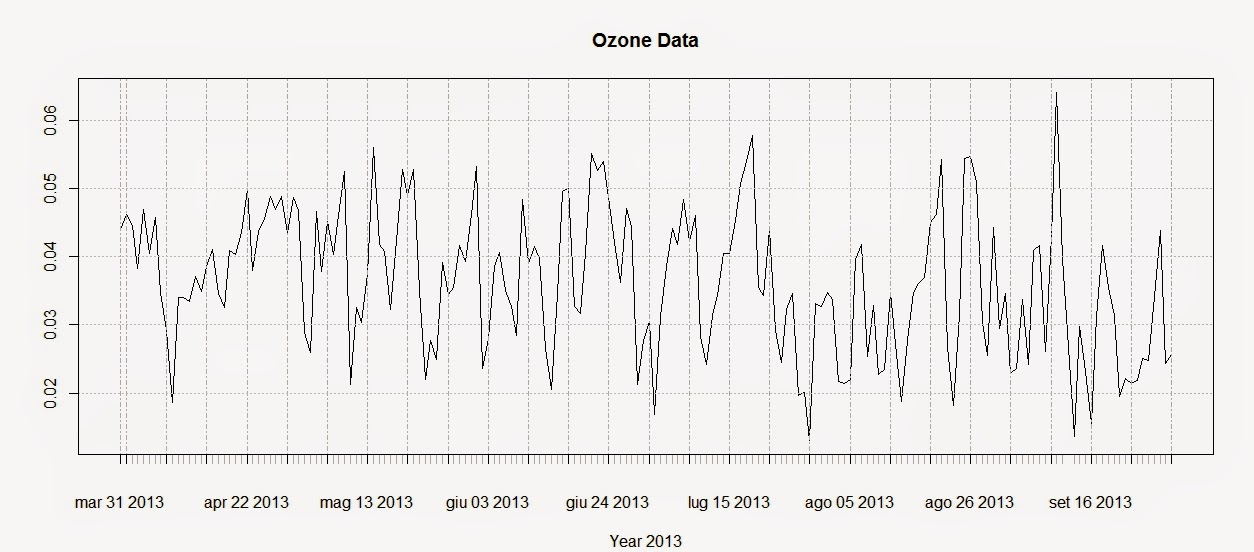
plot(Ozone.TS,main="Ozone Data",sub="Year 2013")

The first line creates the time-series using the Ozone data and the DATE column we created above. The second line plots the time-series and produces the image below:


To extract the dates of the object Ozone we can use the function index and we can use the function coredata to extract the ozone values.

index(Ozone.TS)
 Date[1:183], format: "2013-03-31" "2013-04-01" "2013-04-02" "2013-04-03" ...
 
coredata(Ozone.TS)
 num [1:183, 1] 0.044 0.0462 0.0446 0.0383 0.0469 ...


Subsetting the time-series is super easy in the package xts, as you can see from the code below:

Ozone.TS['2013-05-06'] #Selection of a single day
 
Ozone.TS['2013-03'] #Selection of March data
 
Ozone.TS['2013-05/2013-07'] #Selection by time range

The first line extracts values for a single day (remember that the format is year-month-day); the second extracts values from the month of March. We can use the same method to extract values from one particular year, if we have time-series with multiple years.
The last line extracts values in a particular time range, notice the use of the forward slash to divide the start and end of the range.

We can also extract values by attributes, using the functions index and coredata. For example, if we need to know which days the ozone level was above 0.03 ppm we can simply use the following line:

index(Ozone.TS[coredata(Ozone.TS)>0.03,])

The package xts features some handy function to apply custom functions to specific time intervals along the time-series. These functions are: apply.weekly, apply.monthly, apply.quarterly and apply.yearly

The use of these functions is similar to the use of the apply function. Let us look at the example below to clarify:

apply.weekly(Ozone.TS,FUN=mean)
apply.monthly(Ozone.TS,FUN=max)

The first line calculates the mean value of ozone for each week, while the second computes the maximum value for each month. As for the function apply we are not constrained to apply functions that are available in R, but we can define our own:

apply.monthly(Ozone.TS,FUN=function(x) {sd(x)/sqrt(length(x))})

in this case for example we can define a function to calculate the standard error of the mean for each month.

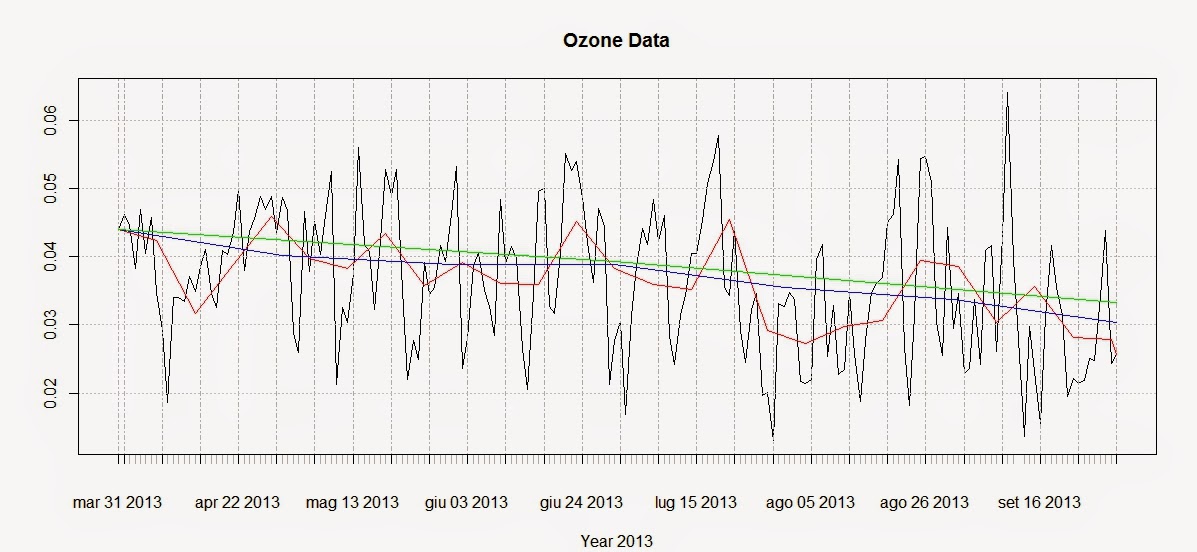
We can use these functions to create a simple plot that shows averages for defined time intervals with the following code:

plot(Ozone.TS,main="Ozone Data",sub="Year 2013")
lines(apply.weekly(Ozone.TS,FUN=mean),col="red")
lines(apply.monthly(Ozone.TS,FUN=mean),col="blue")
lines(apply.quarterly(Ozone.TS,FUN=mean),col="green")
lines(apply.yearly(Ozone.TS,FUN=mean),col="pink")

These lines return the following plot:


From this image it is clear that ozone presents a general decreasing trend over 2013 for this particular station. However, in R there are more precise ways of assessing the trend and seasonality of time-series.

Trends
Let us create another example where we use again the function download.EPA to download NO2 data over 3 years and then assess their trends.

NO2.2013.DATA <- download.EPA(year=2013,property="no2",type="daily")
NO2.2012.DATA <- download.EPA(year=2012,property="no2",type="daily")
NO2.2011.DATA <- download.EPA(year=2011,property="no2",type="daily")
 
ADDRESS = "2 miles south of Ouray and south of the White and Green River confluence"  #Copied and pasted from the interactive map
NO2.2013 <- NO2.2013.DATA[paste(NO2.2013.DATA$Address)==ADDRESS&paste(NO2.2013.DATA$Event.Type)=="None",]
NO2.2012 <- NO2.2012.DATA[paste(NO2.2012.DATA$Address)==ADDRESS&paste(NO2.2012.DATA$Event.Type)=="None",]
NO2.2011 <- NO2.2011.DATA[paste(NO2.2011.DATA$Address)==ADDRESS&paste(NO2.2011.DATA$Event.Type)=="None",]
 
 
NO2.TS <- ts(c(NO2.2011$Arithmetic.Mean,NO2.2012$Arithmetic.Mean,NO2.2013$Arithmetic.Mean),frequency=365,start=c(2011,1))

The first lines should be clear from we said before. The only change is that the time-series is created using the function ts, available in base R. With ts we do not have to create a column of class Date in our dataset, but we can just specify the starting point of the time series (using the option start, which in this case is January 2011) and the number of samples per year with the option frequency. In this case the data were collected daily so the number of times per year is 365; if we had a time-series with data collected monthly we would specify a frequency of 12.

We can decompose the time-series using the function decompose, which is based on moving averages:

dec <- decompose(NO2.TS)
plot(dec)

The related plot is presented below:


There is also another method, based on the loess smoother (for more info: Article) that can be accessed using the function stl:

STL <- stl(NO2.TS,"periodic")
plot(STL)

This function is able to calculate the trend along the whole length of the time-series:


Conclusions
This example shows how to download and access the open pollution data for the US available from the EPA directly from R.
Moreover we have seen here how to map the locations of the stations and subset the dataset. We also looked at ways to perform some introductory time-series analysis on pollution data.
For more information and material regarding time-series analysis please refer to the following references:

A Little Book of R For Time Series

Analysis of integrated and cointegrated time series with R

Introductory time series with R


R code snippets created by Pretty R at inside-R.org