Showing posts with label histogram. Show all posts

Sunday, 25 March 2018

Data Visualization Website with Shiny

My second Shiny app is dedicated to data visualization.
Here users can simply upload any csv or txt file and create several plots:

  • Histograms (with option for faceting)
  • Barchart (with error bars, and option for color with dodging and faceting)
  • BoxPlots (with option for faceting)
  • Scatterplots (with options for color, size and faceting)
  • TimeSeries


  • Error bars in barcharts are computed with the mean_se function in ggplot2, which computes error bars as mean ± standard error. When the color option is set, barcharts are plotted one next to the other for each color (option dodging).

    For scatterplots, if the option for faceting is provided each plot will include a linear regression lines.


    Some examples are below:


    For the time being there is no option for saving plots, apart from saving the image from the screen. However, I would like to implement an option to have plots in tiff at 300dpi, but all the code I tried so far did not work. I will keep trying.

    The app can be accessed here: https://fveronesi.shinyapps.io/DataViz/

    The R code is available here: https://github.com/fveronesi/Shiny_DataViz

    Friday, 15 July 2016

    Time Series Analysis in ArcGIS

    In this post I will introduce another toolbox I created to show the functions that can be added to ArcGIS by using R and the R-Bridge technology.
    In this toolbox I basically implemented the functions I showed in the previous post about time series analysis in R.
    Once again I prepared a sample dataset that I included in the GitHub archive so that you can reproduce the experiment I'm presenting here. I will start my description from there.

    Dataset
    As for my previous post, here I'm also including open data in shapefile from the EPA, which I downloaded for free using the custom R function I presented here.
    I downloaded only temperature data (in F) from 2013, but I kept two categorical variables: State and Address.


    As you can see from the image above the time variable is in the format year-month-day. As I mentioned in the post about the plotting toolbox, it is important to set this format correctly so that R can recognize it. Please refer to this page for more information about the formats that R recognizes.


    Time Series Plot
    This type of plot is available in several packages, including ggplot2, which I used to create the plotting toolbox.  However, in my post about time series analysis I presented the package xts, which is very powerful for handling and plotting time-series data. For this toolbox I decided to maintain the same package and refer everything to xts for several reasons that I would explain along the text.
    The first reason is related to the plotting capabilities of this package. Let's take a look for example at the first script in the toolbox, specific for plotting time series.


    Similarly to the script for time series in the plotting toolbox, here users need to select the dataset (which can be a shapefile or a CSV, or any other table format that can be accessed in ArcGIS). Then they need to select the variable of interest, in the sample dataset that is Temp, which clearly stands for temperature. Another important information for R is the data/time column and its format, again please refer to my previous post for more information. Finally, I inserted an SQL call to subset the dataset. In this case I'm subsetting a particular station.
    The result is the plot below:


    As you can see there are quite a few missing values in the dataset related to the station I subset. The very nice thing about the package xts is that with this plot it is perfectly clear where are the missing data, since along the X axis these are evident by the lack of grey tick marks.


    Time Histogram
    This is a simple bar chart that basically plots time against frequency of samples. The idea behind this plot is to allow users to explore the number of samples for specific time intervals in the dataset.


    The user interface is similar to the previous scrips. Users need to select the dataset, then the variable and then the time column and specify its format. I also included an option to select a subset of the dataset with a SQL selection. At this point I included a list to select the averaging period, and users can select between day, month or year. In this case I selected month, which means that R will loop through the months and subset the dataset for each of these. Then it will basically count the number of data sampled in each month and plot this information against the month itself. The result is the plot below:


    As you can see we can definitely gather some useful information from this plot; for example we can determine that basically this station, in the year 2013, did not have any problem.


    Time Subset
    In some cases we may need to subset our dataset according to a particular time period. This can be done in ArcGIS with the "Select by Attribute" tool and by using an SQL string similar to what you see in the image below:


    The package xts however, provides much more powerful and probably faster ways to subset by time. For example, in ArcGIS if we want to subset the whole month of June we would need to specify an SQL string like this:
    "Time" >= '2013-06-01' AND "Time" < '2013-07-01'

    On the contrary, in R and with the package xts if we wanted to do the same we would just need to use the string '2013-06', and R would know to keep only the month of June. Below are some other examples of successful time subset with the package xts (from http://www.inside-r.org/packages/cran/xts/docs/xts):

    sample.xts['2013']  # all of 2013
    sample.xts['2013-03']  # just March 2013
    sample.xts['2013-03/']  # March 2013 to the end of the data set
    sample.xts['2013-03/2013']  # March 2013 to the end of 2013
    sample.xts['/'] # the whole data set
    sample.xts['/2013'] # the beginning of the data through 2013
    sample.xts['2013-01-03'] # just the 3rd of January 2013


    With this in mind I created the following script:


    As you can see from the image above, here there is an option named "Subset" where users can insert one of the strings from the examples above (just the text within square brackets) and select time intervals with the same flexibility allowed in R and the package xts.
    The result of this script is a new shapefile containing only the time included in the Subset call.


    Time Average Plots
    As I showed in my previous post about time series analysis, with the package xts is possible to perform custom functions on specific time intervals with the following commands: apply.daily, apply.weekly, apply.monthly and apply.yearly.
    In this toolbox I used these functions to compute the average, 25th and 75th percentiles for specific time intervals, which the user may choose. This is the toolbox:


    The only differences from the other scripts are the "Average by", with which the user can select between day, week, month or year. Each of these will trigger the appropriate apply function. Then there is also the possibility to select the position for the plot legend: between topright, topleft, bottomright and bottomleft. Finally, users can select the output folder where the plot below will be saved, along with a CSV with the numerical values for mean, q25 and q75.


    Time Function
    This is another script that provides direct access to the apply functions I presented before. Here the output is not a plot but a CSV with the results of the function, and users can input their own function directly in the GUI. Let's take a look:


    As you can see there is a field named "Function". Here users can insert their own custom function, written in the R language. This function takes a vector (x) and returns a vector and it is in the form:

    function(x){sum(x>70}

    Only the string within curly brackets needs to be written in the GUI. This will then be passed to the script and applied to the values averaged by day, week, month or year. Users can select this last aspect in the field "Average by". Here for example I am calculating the number of days, for each month, with a temperature above 70 degrees Fahrenheit (21 degrees celsius) in Alaska. The results are saved in CSV in the output folder and printed on screen, as you can see from the image below.


    Trend Analysis
    In this last script I included access to the function decompose, which I briefly described in my previous post. This function does not work with xts time series, so the time series needs to be loaded with the standard method, ts, in R. This method requires the user to include the frequency of the time series. For this reason I had to add an option for this in the GUI.
    Unfortunately, the dataset I created for this experiment only has one full year and thus making a decomposition does not make much sense, but you are invited to try with your data and it should work fine and provide you with results similar to the image below:


    Download
    Once again the time-series toolbox is available for free from my GitHub page at:
    https://github.com/fveronesi/TimeSeries_Toolbox/

    Monday, 11 July 2016

    The Power of ggplot2 in ArcGIS - The Plotting Toolbox

    In this post I present my third experiment with R-Bridge. The plotting toolbox is a plug-in for ArcGIS 10.3.x that allows the creation of beautiful and informative plot, with ggplot2, directly from the ESRI ArcGIS console.
    As always I not only provide the toolbox but also a dataset to try it out. Let's start from here...

    Data
    For testing the plotting tool, I downloaded some air pollution data from EPA (US Environmental Protection Agency), which provides open access to its database. I created a custom function to download data from EPA that you can find in this post.
    Since I wanted to provide a relatively small dataset, I extracted values from only four states: California, New York, Iowa and Ohio. For each of these, I included time series for Temperature, CO, NO2, SO2 and Barometric Pressure. Finally, the coordinates of the points are the centroid for each of these four states. The image below depicts the location and the first lines of the attribute table. This dataset is provided in shapefile and CSV, both can be used with the plotting toolbox.


    Toolbox
    Now that we have seen the sample dataset, we can take a look at the toolbox. I included 5 packages to help summarize and visualize spatial data directly from the ArcGIS console.


    I first included a package for summarizing our variables, this creates a table with some descriptive statistics. Then I included all the major plotting types I presented in my book "Learning R for Data Visualization [VIDEO]" edited by Packt Publishing, with some modifications to the scripts for adapting them to the R-Bridge Technology from ESRI. For more information, practical and theoretical, about each of these plots please refer to the book.

    The tool can be downloaded from my GitHub page at:
    https://github.com/fveronesi/PlottingToolbox


    Summary 
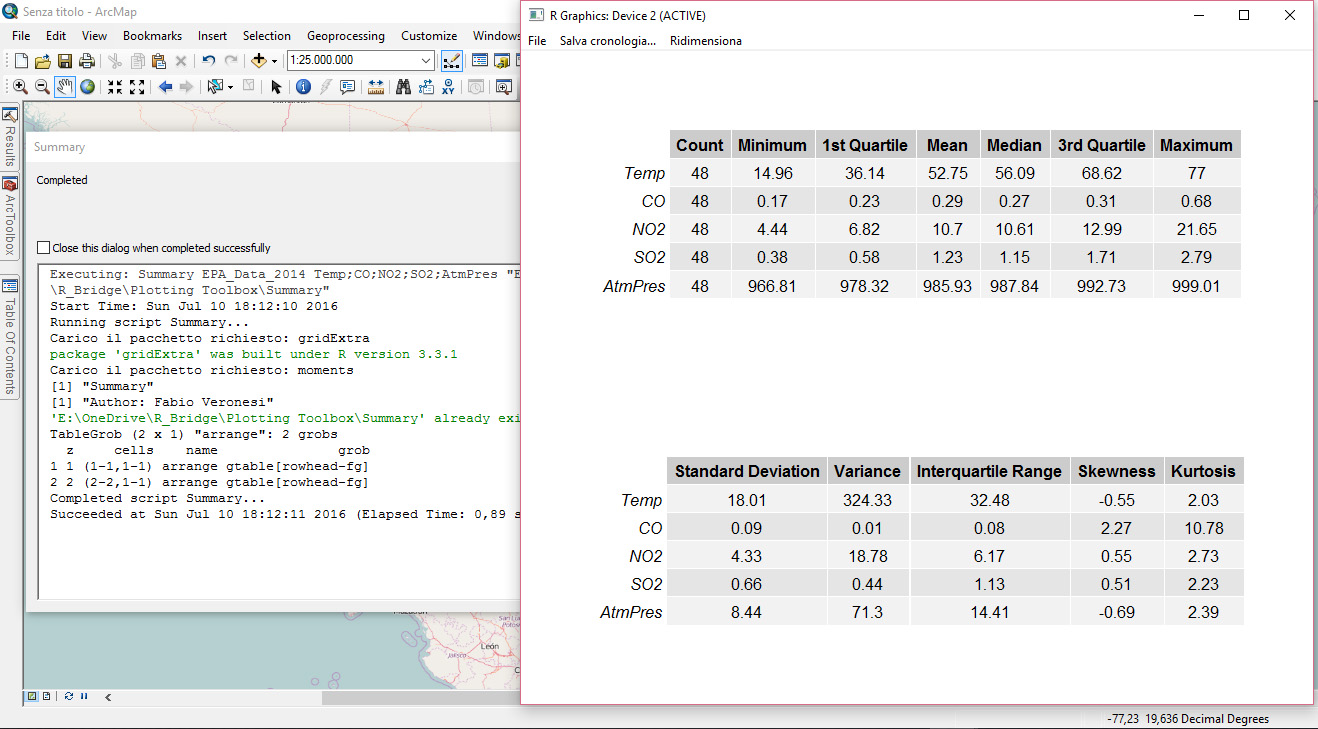
    This is the first package I would like to describe simply because a data analysis should always start with a look at our variables with some descriptive statistics. As for all the tools presented here its use is simple and straightforward with the GUI presented below:


    Here the user has to point to the dataset s/he wants to analyze in "Input Table". This can be a shapefile, either loaded already in ArcGIS or not, but it can also be a table, for example a CSV. That is the reason why I included a CSV version of the EPA dataset as well.
    At this point the area in "Variable" will fill up with the column names of the input file, from here the user can select the variable s/he is interested in summarizing. The final step is the selection of the "Output Folder". Important: users need to first create the folder and then select it. This is because this parameter is set as input, so the folder needs to exist. I decided to do it this way because otherwise for each new plot a new folder would have need to be created. This way all the summaries and plots can go into the same directory.
    Let's take a look at the results:


    The Summary package presents two tables, with all the variables we wanted to summarize, arranged one above the other. This is the output users will see on screen once the toolbox has competed its run. Then in the output folder, the R script will save this exact table in PDF format, plus a CSV with the raw data.

    Histogram
    As the name suggest this tool provides access to the histogram plot in ggplot2. ArcGIS provides a couple of ways to represent data in histograms. The first way is by clicking with the right mouse button on one of the column in the attribute table; a drop-down menu will appear and from there users can click on "Statistics" to access some descriptive statistics and a histogram. Another way is through the "Geostatistical Analyst", which is an add-on for which users need an additional license. This has an "Explore Data" package from which it is possible to create histograms. The problem with both these methods is that the results are not, in my opinion at least, suitable for any publication. You can maybe share them with your colleagues, but I would not suggest using them for any article. This implies that ArcGIS users need to open another software, maybe Excel, to create the plots they require, and we all know how painful it is in Excel to produce any decent plot, and histogram are probably the most painful to produce.
    This changes now!!

    By combining the power of R and ggplot2 with ArcGIS we can provide users with an easy to use way to produce beautiful visualizations directly within the ArcGIS environment and have them saved in jpeg at 300 dpi. This is what this set of packages does.
    Let's now take a look at the interface for histograms:


    As for Summary we first need to insert the input dataset, and then select the variable/s we want to plot. If two or more variables are selected, several plots will be created and saved in jpeg.
    I also added some optional values to further customize the plots. The first is the faceting variable, which is a categorical variable. If this is selected the plot will have a histogram for each category; for example, in the sample dataset I have the categorical variable "state", with the name of the four states I included. If I select this for faceting the result will be the figure below:


    Another option available here is the binwidth. The package ggplot2 usually sets this number as the range of the variable divided by 30. However, this can be customized by the user and this is what you can do with this option. Finally users need to specify an output folder where R will save a jpeg of the plots shown on screen.


    Box-Plot
    This is another great way to compare variables' distributions and as far as I know it cannot be done directly from ArcGIS. Let's take a look at this package:


    This is again very easy to use. Users just need to set the input file, then the variable of interest and the categorical variable for the grouping. Here I am again using the states, so that I compare the distribution of NO2 across the four US states in my dataset.
    The results is ordered by median values and it is shown below:


    As you can see I decided to plot the categories vertically, as to accomodate long names. This of course can be changed by tweaking the R script. As for each package, this plot is saved in the output folder.


    Bar Chart
    This tool is generally used to compare different values for several categories, but generally we have one value for each category. However, it may happen that the dataset contains multiple measurements for some categories, and I implemented a way to deal with that here. Below is presented the GUI to this package:


    The inputs are basically the same as for box-plots, the only difference is in the option "Average Values". If this is set, R will average the values of the variable for each unique category in the dataset. The results are again ordered, and are saved in jpeg in the output folder:


    Scatterplot
    This is another great way to visually analyze our data. The package ggplot2 allows the creation of highly customized plots and I tried to implement as much as I could in terms of customization in this toolbox. Let's take a look:


    After selecting the input dataset the user can select what to plot. S/he can choose to only plot two variables, one on the X axis and one on the Y axis, or further increase the amount of information presented in the plot by including a variable that changes the color of the points and one for their size. Moreover, there is also the possibility to include a regression line. Color, size and regression line are optional, but I wanted to include them to present the full range of customizations that this package allows.


    Once again this plot is saved in the output folder.


    Time Series
    The final type of plots I included here is the time series, which is also the one with the highest number of inputs from the user side. In fact, many spatial datasets include a temporal component but often time this is not standardized. By that I mean that in some cases the time variable has only a date, and in some cases it includes a time; in other cases the format changes from dataset to dataset. For this reason it is difficult to create an R script that works with most datasets, therefore for time-series plots users need to do some pre-processing. For example, if date and time are in separate columns, these need to be merged into one for this R script to work.
    At this point the TimeSeries package can be started:


    The first two columns are self explanatory. Then users need to select the column with the temporal information, and then input manually the format of this column.
    In this case the format I have in the sample dataset is the following: 2014-01-01
    Therefore I have the year with century, a minus sign, the month, another minus sign and the day. I need to use the symbols for each of these to allow R to recognize the temporal format of the file.
    Common symbol are:
    %Y - Year with century
    %y - Year without century
    %m - Month
    %d - Day
    %H - Hour as decimal number  (00-23)
    %M - Minute as decimal number (00-59)
    %S - Second as decimal number

    More symbols can be found at this page: http://www.inside-r.org/r-doc/base/strptime

    The remaining two inputs are optional, but if one is selected the other needs to be provided. For "Subsetting Column" I intend a column with categorical information. For example, in my dataset I can generate a time-series for each US state, therefore my subsetting column is state. In the option "Subset" users need to write manually the category they want to use to subset their data. Here I just want to have the time-series for California, so I write California. You need to be careful here to write exactly the name you see in the attribute table because R is case sensitive, thus if you write california with a lower case c R will be unable to produce the plot.
    The results, again saved in jpeg automatically, is presented below:


    Monday, 25 April 2016

    Learning R for Data Visualization [Video]

    Last year Packt asked me to develop a video course to teach various techniques of data visualization in R. Since I love the idea of video courses and tutorials, and I also enjoy plotting data, I readily agreed.
    The result is this course, published last March, which I will briefly present below.


    The course is available here:
    https://www.packtpub.com/big-data-and-business-intelligence/learning-r-data-visualization-video

    I wanted to create a course that was easy to follow, and at the same time could provide a good basis even for the most advanced forms of data visualization available today in R.
    Packt was interested in presenting ggplot2, which is definitely the most advanced way of creating static plots. Since I regularly use ggplot2 and I find it a tremendous tool, I was glad to be able to present its functionalities more in details. Three chapters are dedicated to this package. Here I present all the most important types of plots: histograms, box-plots, scatterplots, bar-charts and time-series. Moreover, a whole chapter is dedicated to embellish the default plots by adding elements, such as text labels and much more.

    However, I am also very interested in interactive plotting, which I believe is now rapidly becoming commonplace for lots of applications. For this reason two chapters are completely dedicated to interactive plots. In the first I present the package rCharts, which is extremely powerful but also a bit tricky to use at times. In many cases there is little documentation to work with, and for developing the course I found myself often wondering through stackoverflow searching for answers. Luckily for all of us, Prof. Ramnath Vaidyanathan, the creator of rCharts, is always available to answer all the users' questions quickly and clearly. In chapter 5 the viewer will be able to start from zero and quickly create nice interactive versions of all the plots I covered with ggplot2. 

    The last chapter is dedicated to Shiny and it is aimed at the creation of a full website for importing and plotting data. Here the reader will first learn the basics of Shiny and then will write the code to create the website and add lots of interesting functionalities.

    I hope this video course will help R users become familiar with data visualization.
    I would also like to take this opportunity to stress that I am open to support viewers throughout the learning process, meaning that if you have any question about the material in the course you should not hesitate one second in contacting me at info@fabioveronesi.net